Workflow Settings
Workflow Settings provides system-level tools for executing, designing, deploying, monitoring, and managing workflow processes in Data Touch.
This menu is primarily intended for administrators and authorized users who manage workflow processes and their execution.
The Workflow Settings menu contains the following submenus:
- Flow Execution
- Process Cockpit
- Flow Design
- Deployment
- Flow Users
- Flow Reports
Flow Execution
The Flow Execution page is used to manage scheduled workflow jobs, run jobs manually, and review their execution history.
The page contains the following tabs:
- Jobs
- Execution Logs
Jobs
The Jobs tab displays configured workflow execution jobs.
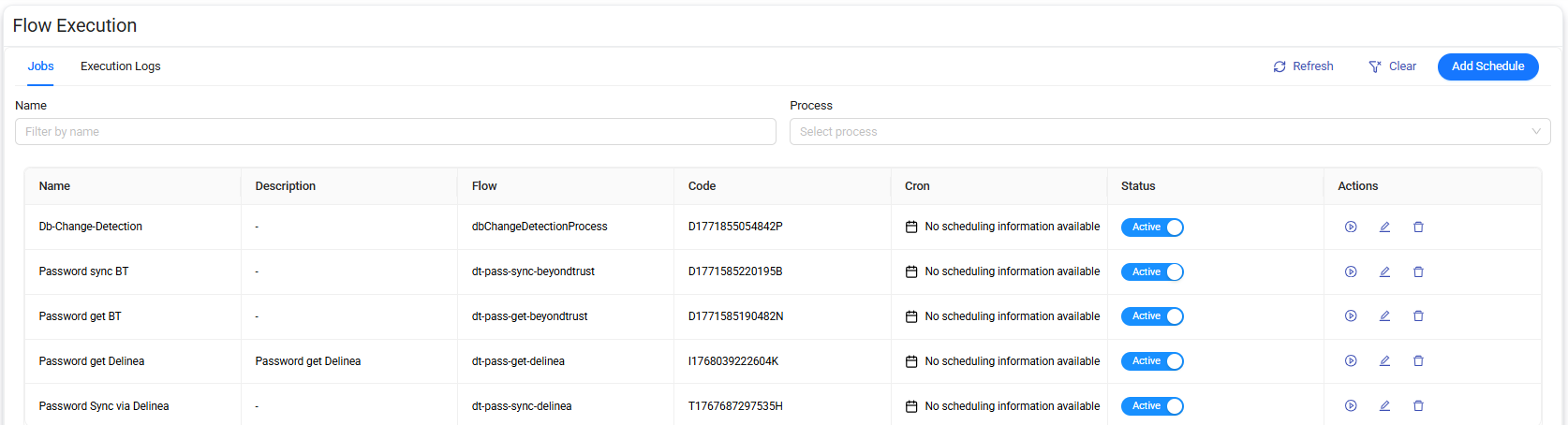
You can filter the job list by:
- Name
- Process
Use Refresh to update the displayed job information.
Select Clear to reset the current filters.
The job list includes the following information:
| Column | Description |
|---|---|
| Name | Name of the configured job. |
| Description | Description of the job, if available. |
| Flow | Workflow process associated with the job. |
| Code | Identifier assigned to the job. |
| Cron | Scheduling information configured for the job. |
| Status | Indicates whether the job is active. |
| Actions | Provides actions for running and managing the job. |
If no recurring schedule is configured, the Cron column indicates that no scheduling information is available.
Job status
Use the Status toggle to enable or disable a job.
- Active — The job is enabled.
- Inactive — The job is disabled.
Job actions
The Actions column provides the following operations for each job:
- Run — Runs the selected job manually.
- Edit — Opens the job configuration for editing.
- Delete — Deletes the selected job.
Run a job
Select Run to start the job manually.
A manually started execution is recorded in the Execution Logs tab with Manual as its trigger type.
Edit a job
Select Edit to modify the configuration of an existing job.
Update the required settings, and then save the changes.
Delete a job
Select Delete to remove the selected job.
Warning
Verify that the job is no longer required before deleting it.
Add a schedule
Select Add Schedule in the upper-right corner of the Flow Execution page to open the New Schedule panel.
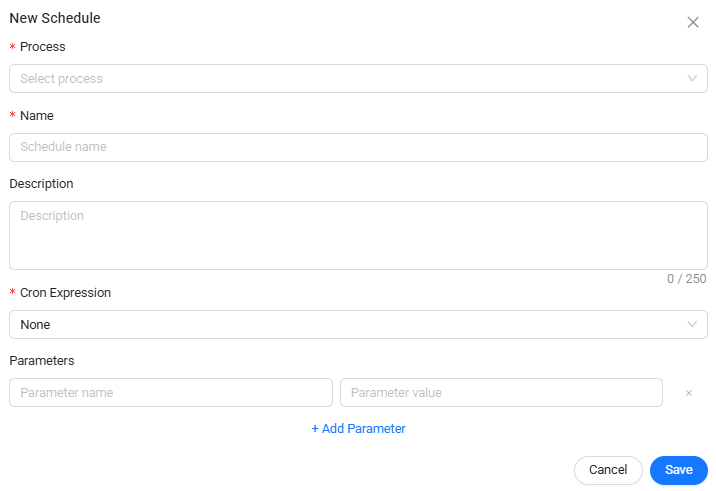
The following fields are available:
| Field | Required | Description |
|---|---|---|
| Process | Yes | Specifies the workflow process to execute. |
| Name | Yes | Specifies the name of the scheduled job. |
| Description | No | Provides additional information about the purpose of the job. |
| Cron Expression | Yes | Specifies the schedule used to execute the job. |
| Parameters | No | Defines optional parameter names and values passed to the workflow. |
Configure parameters
Use Parameters to provide additional values required by the selected workflow.
Each parameter consists of:
- Parameter name
- Parameter value
To add parameters:
- Enter a parameter name.
- Enter the corresponding parameter value.
- Select + Add Parameter to add another parameter, if required.
Use the remove action next to a parameter to delete it from the configuration.
Save the schedule
To create a scheduled job:
- Select a Process.
- Enter a Name.
- Enter a Description, if required.
- Select or configure the Cron Expression.
- Add any required Parameters.
- Select Save.
Data Touch adds the job to the Jobs list.
Select Cancel to close the panel without saving the job.
Execution Logs
The Execution Logs tab provides the execution history of workflow jobs.
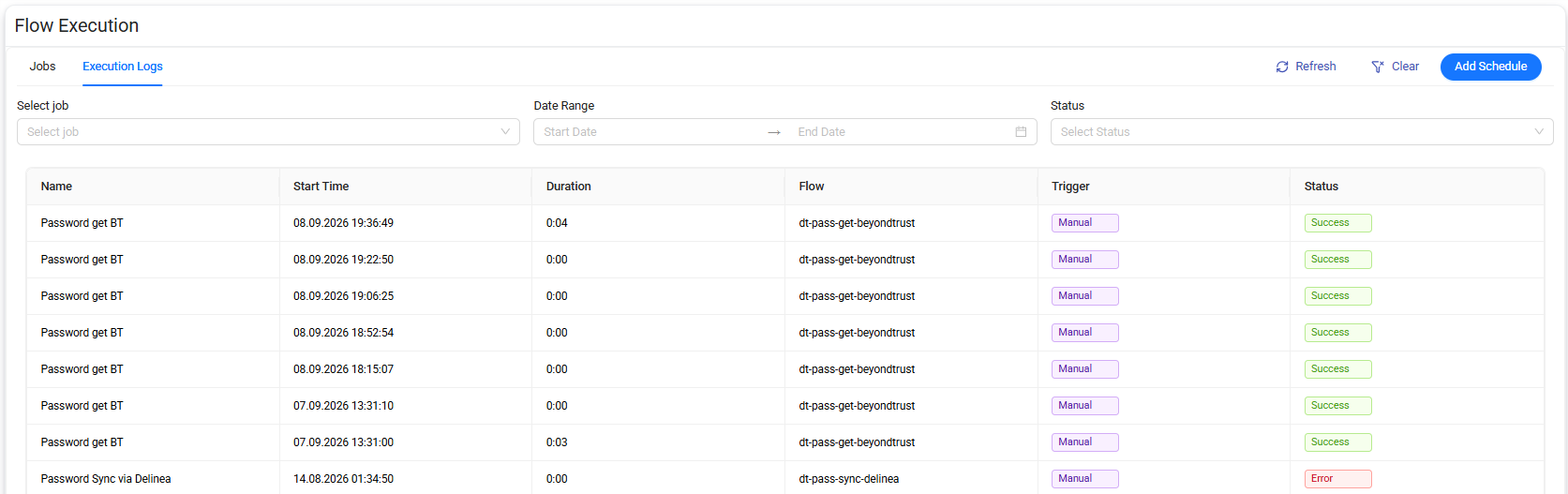
You can filter execution records by:
- Job
- Date Range
- Status
The execution list includes the following information:
| Column | Description |
|---|---|
| Name | Name of the executed job. |
| Start Time | Date and time when the execution started. |
| Duration | Time taken to complete the execution. |
| Flow | Workflow process associated with the execution. |
| Trigger | Indicates how the execution was started, such as Manual. |
| Status | Result of the execution, such as Success or Error. |
Use Refresh to retrieve the latest execution information.
Select Clear to reset the filters.
The Execution Logs tab can be used to verify whether workflow executions completed successfully and to identify failed executions that may require further investigation.
Process Cockpit
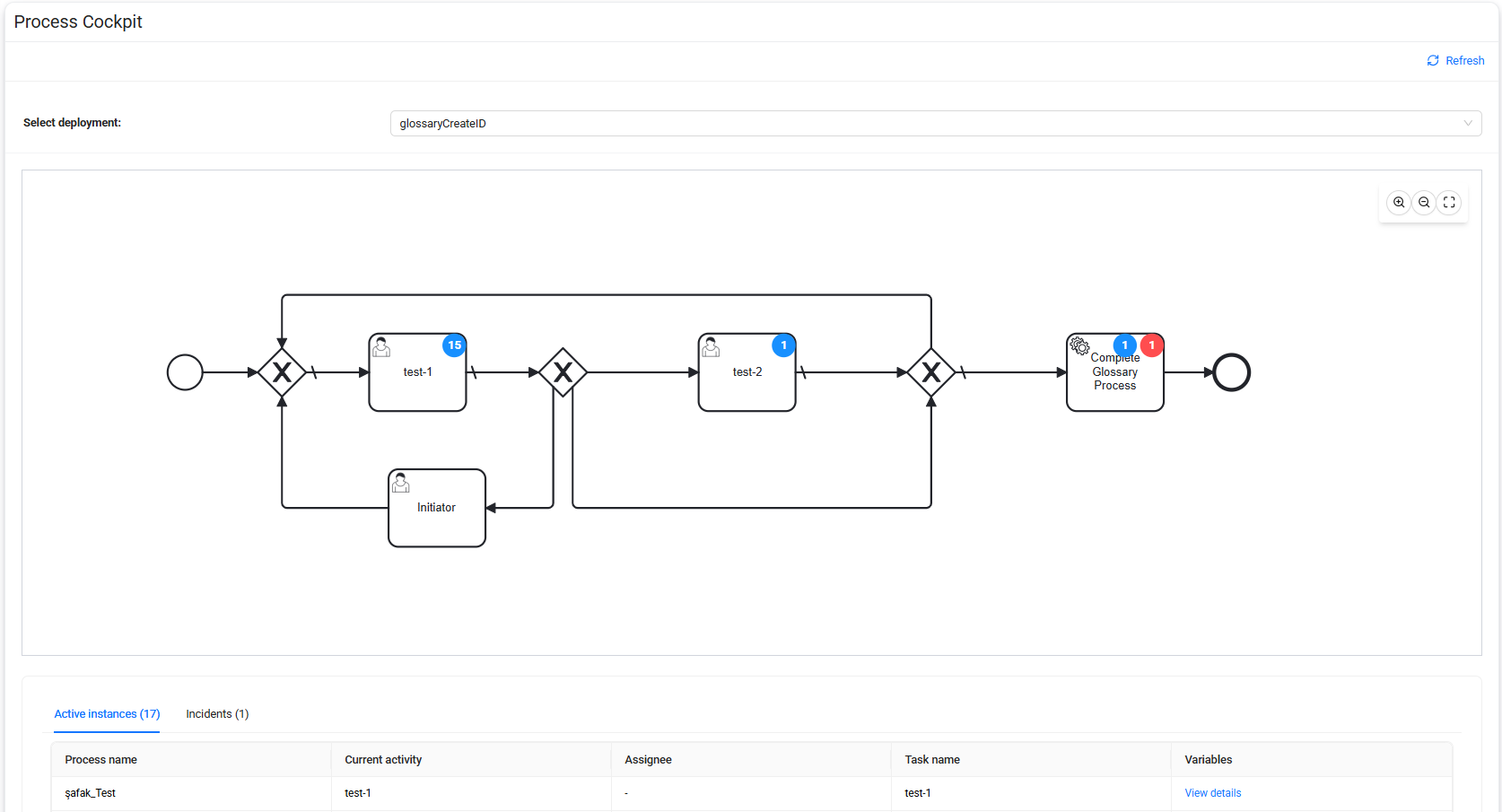
The Process Cockpit provides a visual overview of deployed workflow processes and their current execution status.
Select a deployment to display its process as a BPMN (Business Process Model and Notation) diagram.
For each step in the process, you can review information such as:
- Active Instances — Number of currently active process instances or tasks.
- Incidents — Errors or failed process steps associated with the selected process.
Incident information can also include error details that help identify where a process has failed.
Completed instances are not displayed directly in the process diagram. Use Flow Reports to review completed process information.
The Process Cockpit provides a visual representation of the current workflow state and helps you identify active tasks and incidents across process steps.
Flow Design
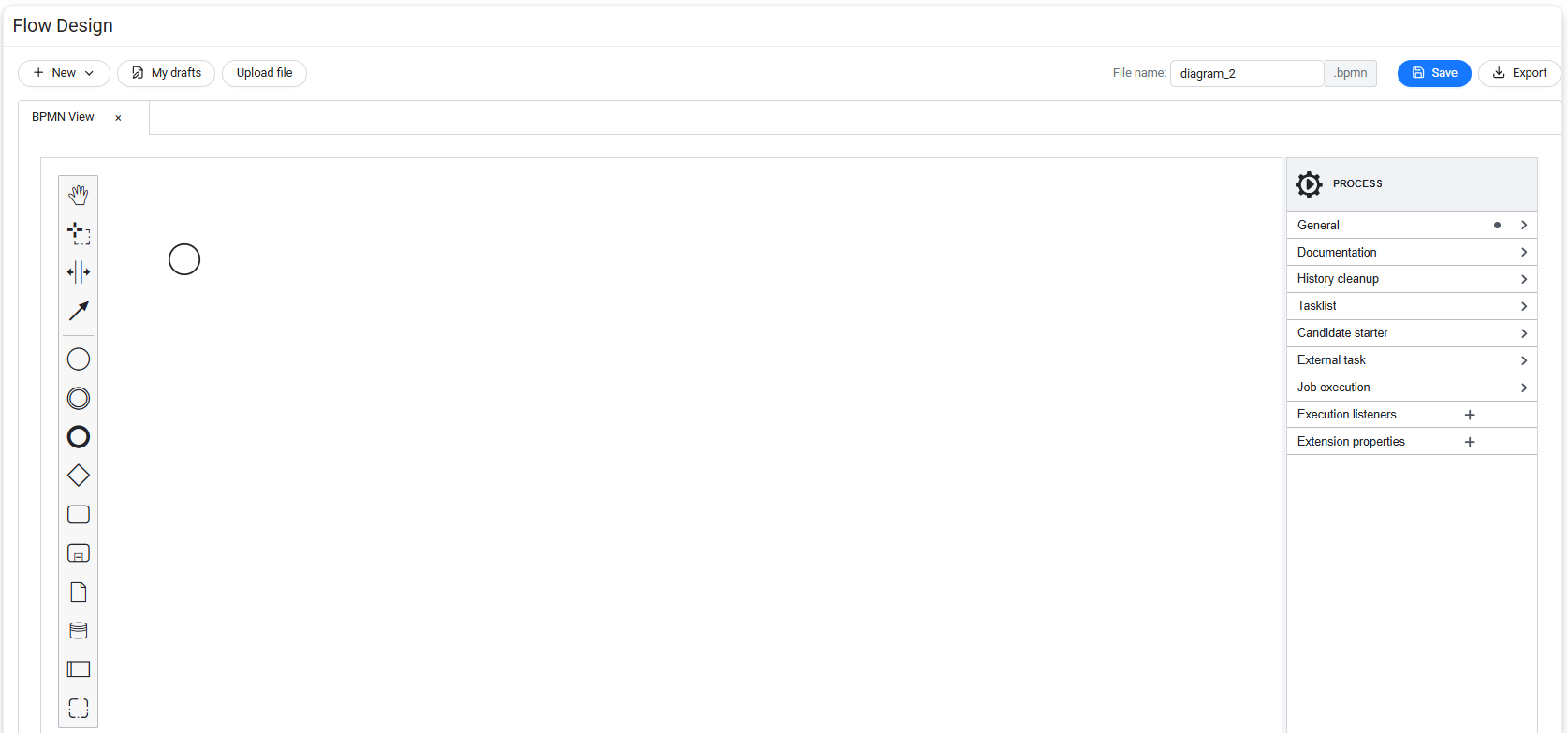
The Flow Design page is used to create and design workflow processes.
You can use this page to:
- Create forms associated with a workflow.
- Design process flows using BPMN.
- Save a process as a Draft.
- Upload an existing BPMN file.
- Export a process definition for external use.
Flow Design allows you to configure the process flow and its associated forms within the same workflow definition.
Deployment
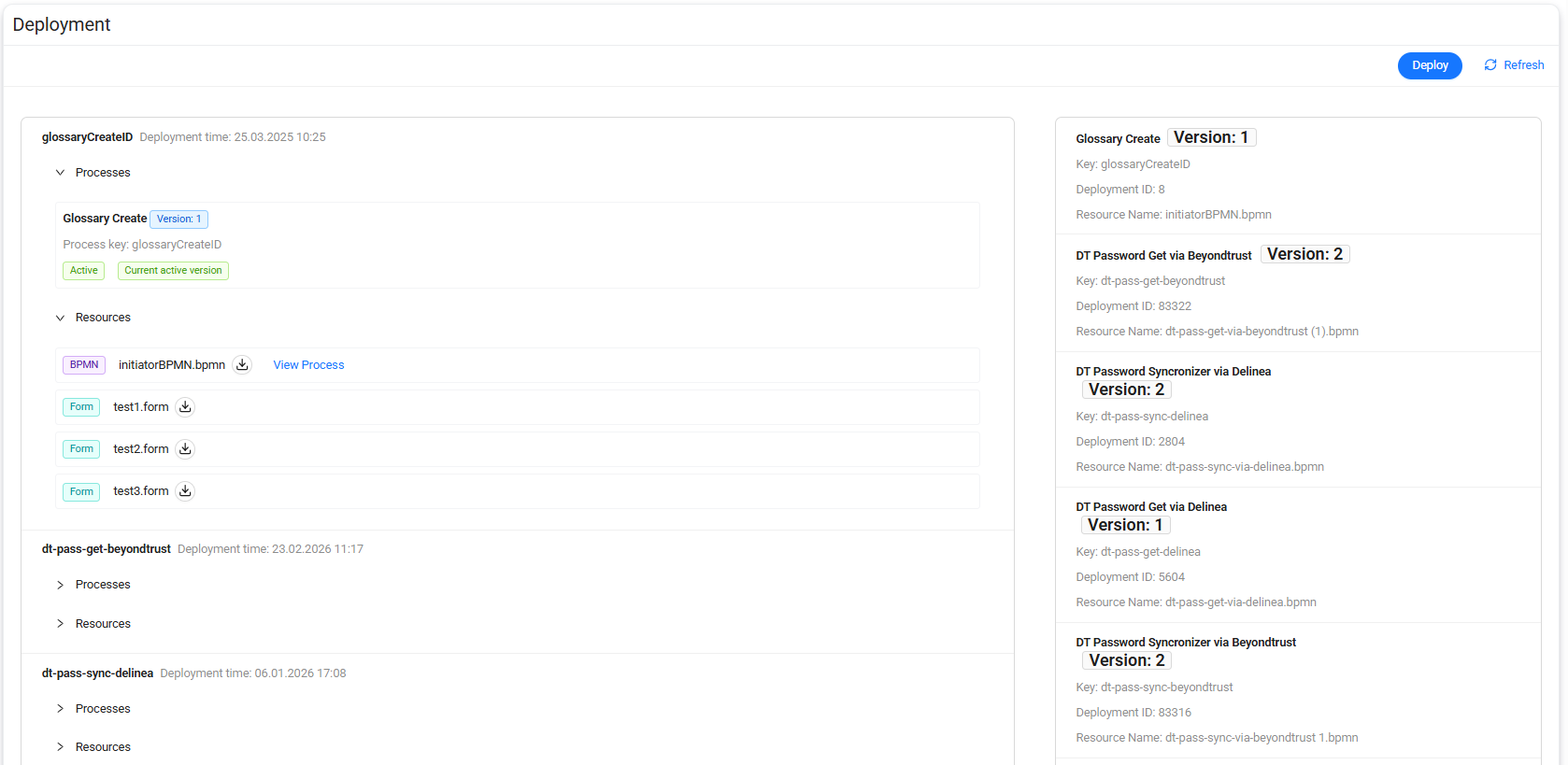
The Deployment page is used to deploy new or updated workflow processes to Data Touch.
You can use this page to:
- Deploy a workflow process.
- Upload BPMN files and associated form files, such as JSON files.
- Manage different versions of a deployed workflow.
- Access files associated with previous deployments.
- Switch between deployed versions.
Deploy a process
Select Deploy to deploy a workflow process.
Depending on the process configuration, the deployment can include:
- BPMN definitions
- Initiator forms
- Other workflow forms
- Related JSON files
Version Deployment
Use Version Deployment to determine how an updated workflow is deployed.
- When Version Deployment is enabled, Data Touch deploys the process as a new version of the existing workflow.
- When Version Deployment is disabled, Data Touch creates an independent deployment instead of adding a version to the existing workflow.
Access deployed files
Previously deployed workflow files can include:
- Initiator forms
- Test forms
- BPMN diagrams
Switch versions
Use Switch Version to change the active workflow version when another deployed version must be used.
This option can also be used to return to an earlier version when required.
Flow Users
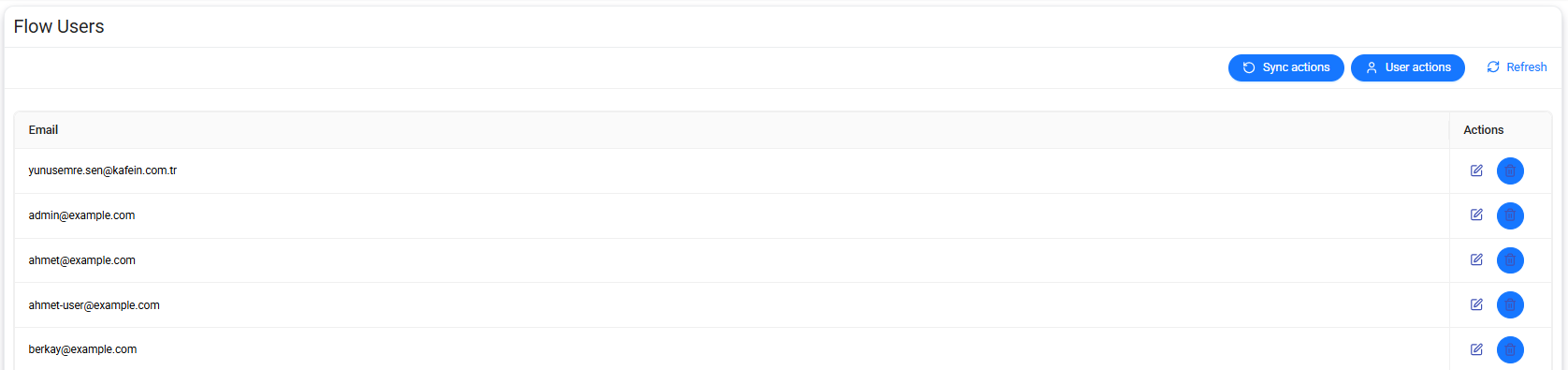
The Flow Users page is used to synchronize workflow users and roles with the user management systems used by the workflow infrastructure.
The synchronization process keeps workflow user information aligned with Keycloak and Camunda User Management.
Synchronization can be:
- Started manually.
- Performed automatically at configured intervals.
Use synchronization after user or role information changes in Keycloak to ensure that the updated information is available to Workflow.
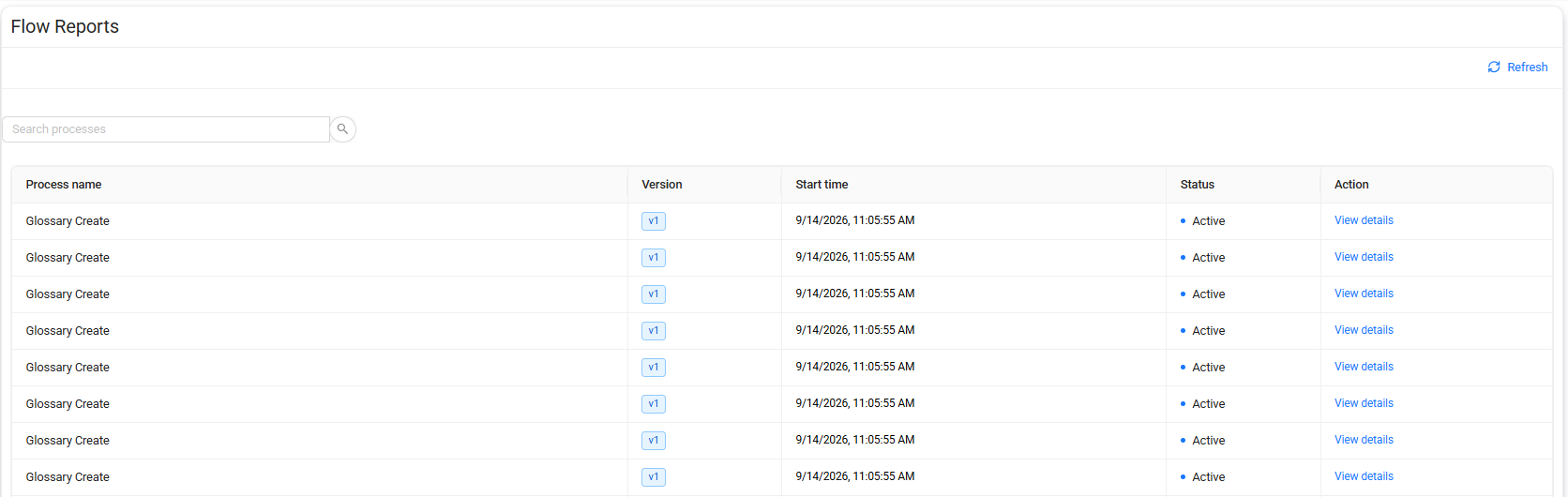
Flow Reports
The Flow Reports page provides system-wide reporting for workflow processes.
Unlike Workflow Inbox > My Reports, which displays processes associated with the current user, Flow Reports provides an overall view of workflow processes across the system.
You can use this page to review information such as:
- Active processes
- Failed processes
- Completed processes
- Process-level statistics
Flow Reports is primarily intended for administrators and authorized users who need to monitor workflow activity across the system.