Anomaly Detection
Anomaly Detection identifies patterns or activities that deviate from expected behavior.
It helps detect:
- Unusual activity
- Outliers
- Potential security threats
- Unexpected access patterns
- Abnormal system behavior
The Anomaly Detection menu contains the following submenus:
- Dashboard
- Scenarios
Dashboard
The Dashboard provides an overview of anomalies detected by Data Touch.
It includes:
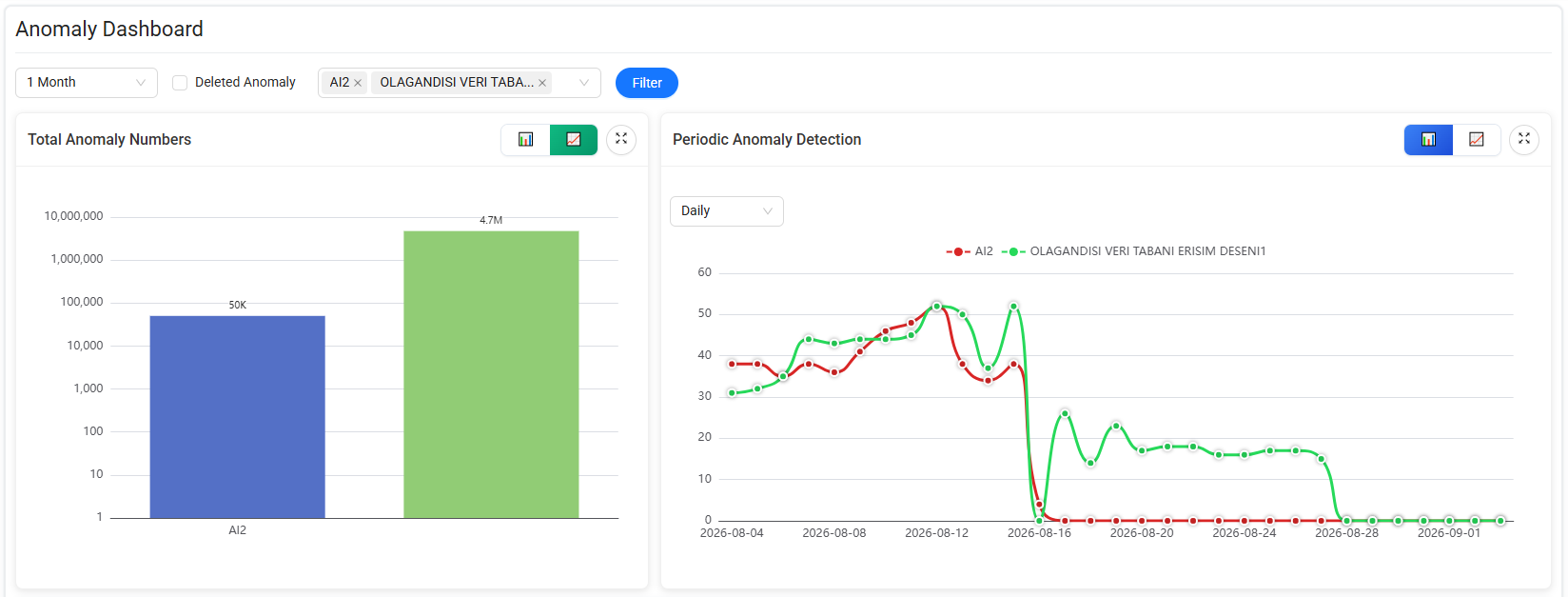
- Total Anomaly Numbers
- Periodic Anomaly Detection
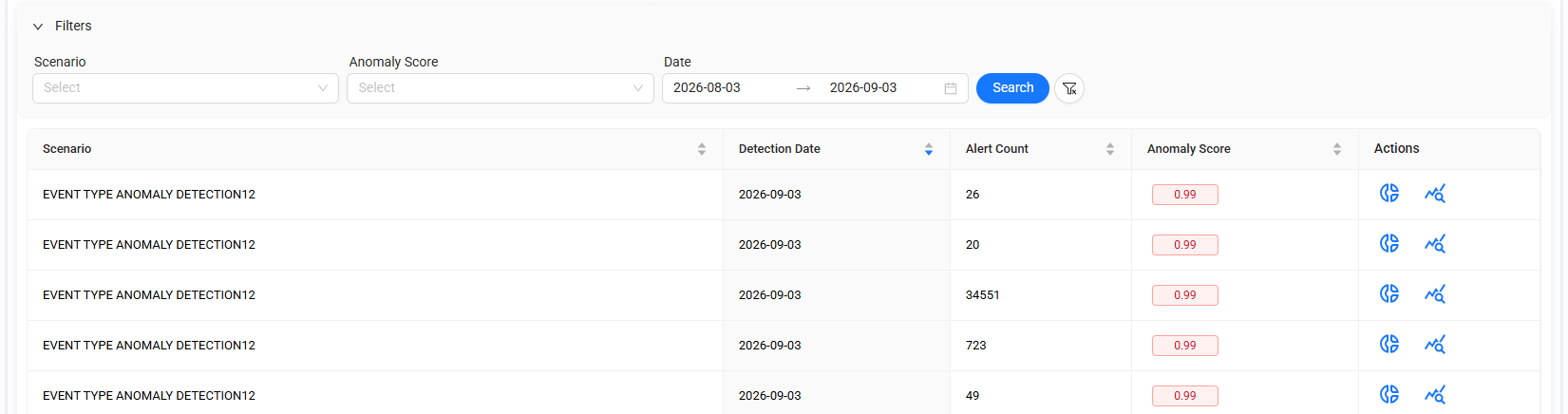
- Detected Anomalies
- Detailed anomaly information and related queries
Total Anomaly Numbers
The Total Anomaly Numbers chart shows the total number of detected anomalies by scenario.
You can:
- Select a date range of 1 month, 3 months, or 6 months.
- Select the scenarios to include in the chart.
- Switch between Linear and Logarithmic scales.
The total number of anomalies for each scenario is displayed above the corresponding bar.
Periodic Anomaly Detection
The Periodic Anomaly Detection chart shows how the number of detected anomalies changes over time.
You can group the results by:
- Weekly
- Monthly
Use this chart to identify changes or trends in anomaly activity over the selected period.
Detected Anomalies
The Detected Anomalies list provides details about individual anomaly detections.
The list includes information such as:
- Scenario
- Detection Date
- Alert Count
- Anomaly Score
The available actions provide additional information about each detected anomaly.
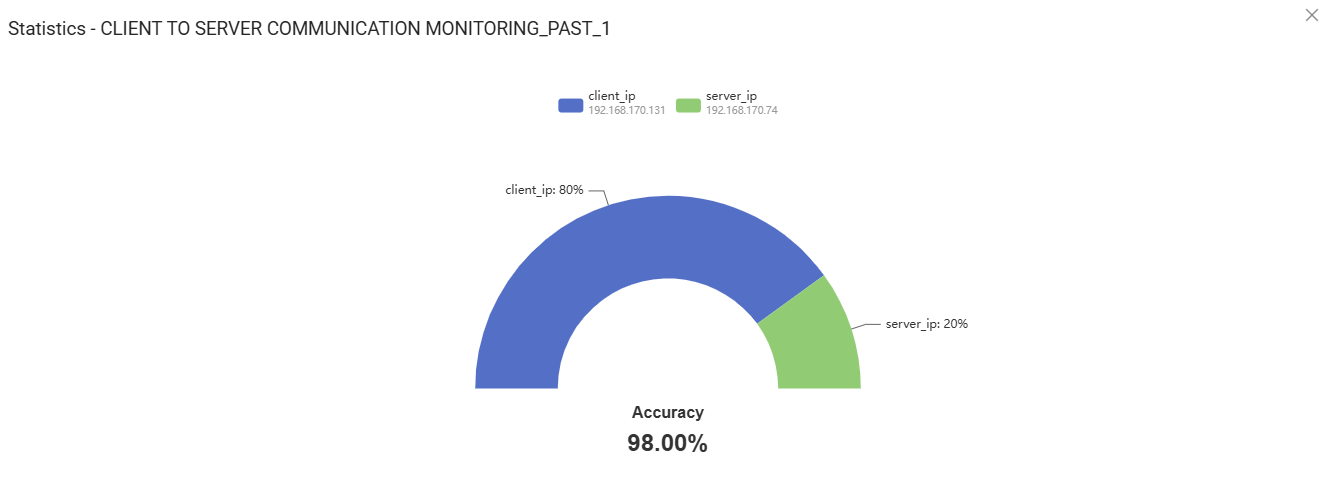
Statistics
Select Statistics  to view statistical information associated with the detected anomaly.
The details include:
- Accuracy Rate
- Related Column Names
Scenario Queries
Select Scenario Queries  to view the data associated with the anomaly.
The details include the relevant:
- Column
- Value

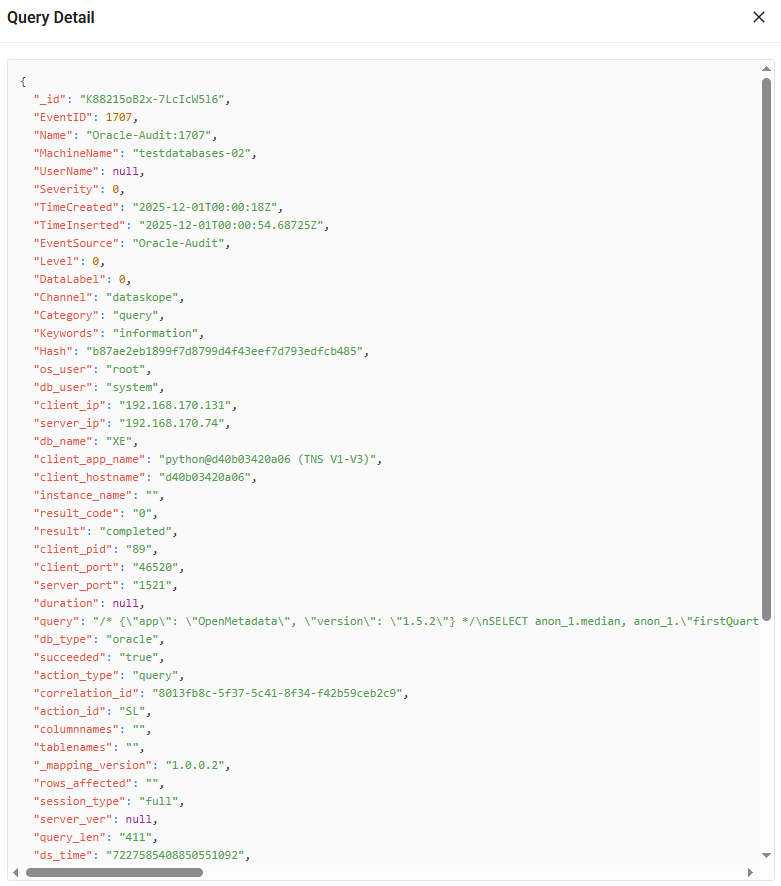
Query Detail
Select Query Detail  to view detailed information about the query associated with the anomaly.
Scenarios
The Scenarios page is used to create, configure, and manage anomaly detection scenarios.
Each scenario defines the data, conditions, training configuration, and retention settings that Data Touch uses for anomaly detection.
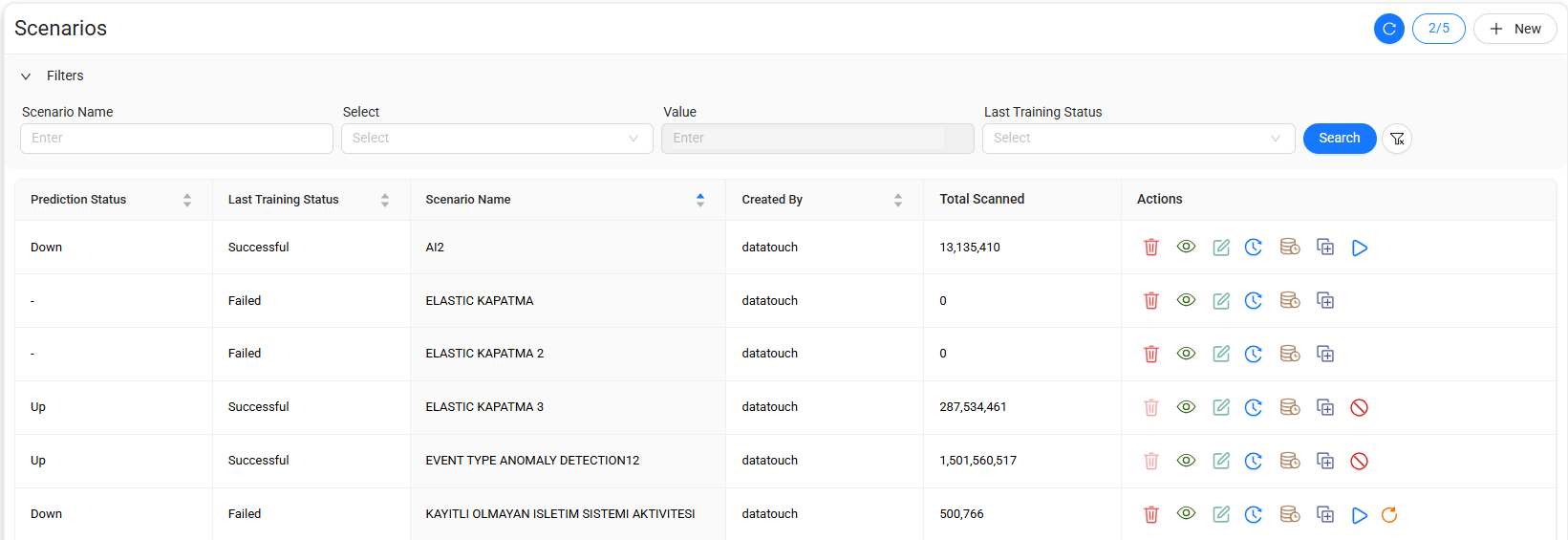
Scenario list
The scenario list displays configured anomaly detection scenarios and provides actions for managing them.
Available actions include:
- Delete
- Scenario Details
- Edit
- History
- Update Retention Period
- Clone
- Start / Stop
- Train Again Start
Delete a scenario
Select Delete to remove the selected scenario.
Warning
Verify that the scenario is no longer required before deleting it.
View Scenario Details
Select Scenario Details to view the configuration and details of the selected anomaly detection scenario.
Use this page to review the scenario settings without modifying the existing configuration.
Edit a scenario
Select Edit to modify the configuration of an existing scenario.
Use this option to update the scenario configuration without creating a new scenario.
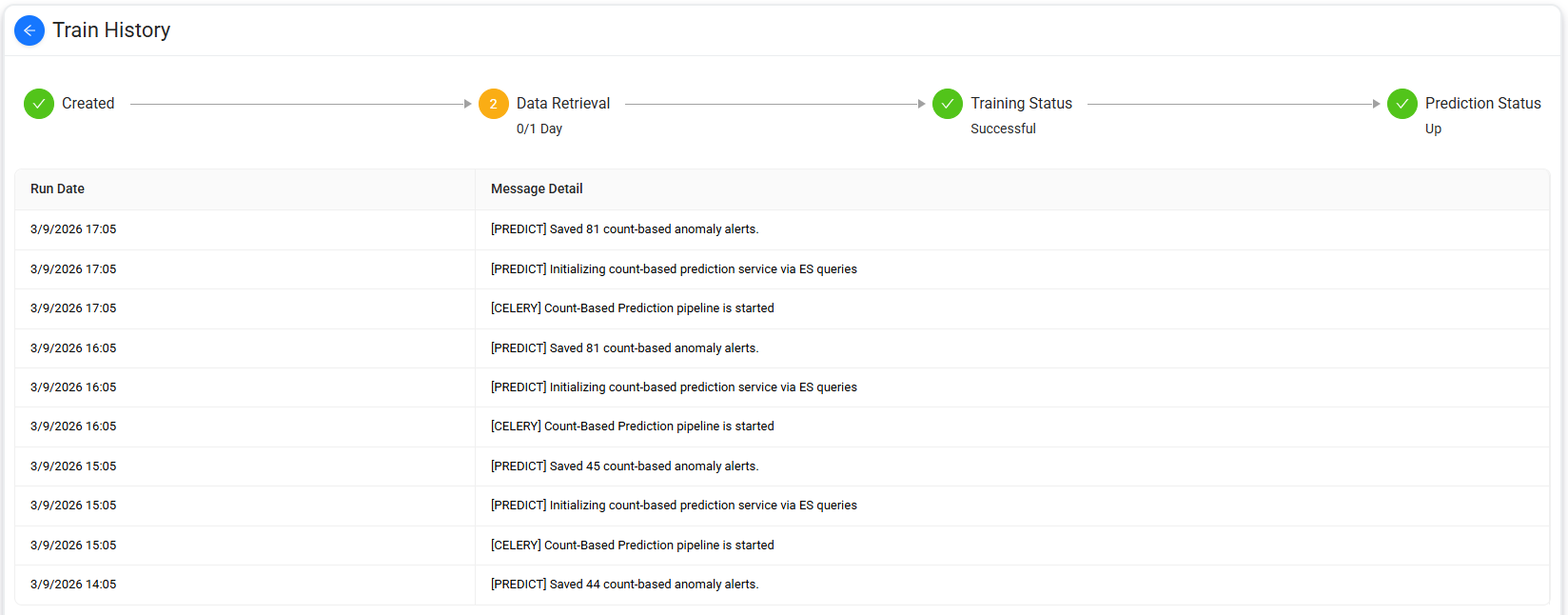
View scenario history
Select History  to view the history of the selected scenario.
The history provides information about previous scenario activity and execution.
Update the retention period
Select Update Retention Period  to change how long the data associated with the scenario is retained.
Enter the required retention period in days, and then save the configuration.
Tip
Data Touch retains scenario data for the configured retention period. Data older than the specified number of days is automatically deleted.

Clone a scenario
Select Clone  to create a new scenario based on the configuration of an existing scenario.
After cloning the scenario, modify the configuration as required, and then save it as a new scenario.
The original scenario remains unchanged.
Start, stop, or retrain a scenario
The available action depends on the current state of the scenario.
- Select Start
 to start the scenario.
- Select Stop
 to stop a running scenario.
- Select Train Again Start
 to start the training process again for a scenario when this action is available.
Note
The Start, Stop, and Train Again actions are displayed according to the current scenario status and available operations.
Create a scenario
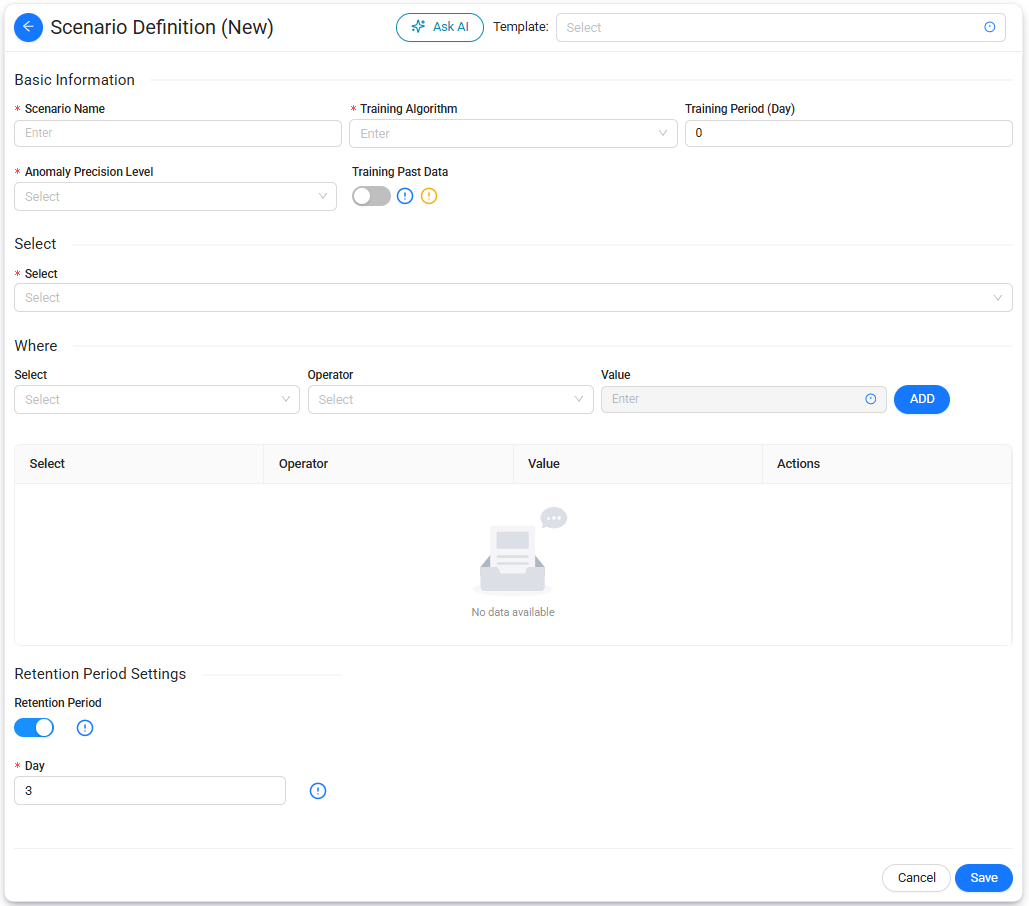
Select + New on the Scenarios page to open the Scenario Definition page.
Use this page to configure the training settings, select the data to analyze, define filtering conditions, and specify the retention period for the anomaly detection scenario.
You can create a scenario manually or select a predefined Template as a starting point.
Tip
Anomaly detection templates provide predefined configurations for common detection use cases. You can customize the selected template before saving the scenario.
Select a template
Use Template at the top of the page to select a predefined anomaly detection template.
Selecting a template provides a starting point for configuring the scenario. You can modify the scenario settings as required before saving it.
Tip
The Ask AI option is also available from the Scenario Definition page for AI-assisted scenario configuration.
Basic Information
Use the Basic Information section to configure the primary settings of the scenario.
The following fields are available:
| Field | Description |
|---|---|
| Scenario Name | Specifies the name of the anomaly detection scenario. |
| Training Algorithm | Specifies the algorithm used to train the anomaly detection model. |
| Training Period (Day) | Specifies the training period in days. |
| Anomaly Precision Level | Specifies the anomaly detection precision level. |
| Training Past Data | Determines whether historical data is included in the training process. |
Training Past Data
Use the Training Past Data toggle to determine whether the scenario uses historical data during training.
Enable this option when historical activity must be included in the training data.
Select
Use the Select section to specify the data fields that the anomaly detection scenario analyzes.
Select the required field or fields from the Select list.
The selected data determines which attributes are included in the anomaly detection process.
Where
Use the Where section to restrict the data included in the scenario.
Each condition consists of the following components:
| Field | Description |
|---|---|
| Select | Specifies the field to use in the condition. |
| Operator | Specifies the comparison operator applied to the selected field. |
| Value | Specifies the value used for the comparison. |
To add a condition:
- Select a field from Select.
- Select the required Operator.
- Enter or select the required Value.
- Select ADD.
Data Touch adds the condition to the list below the Where section.
Repeat these steps to add additional conditions as required.
Retention Period Settings
Use Retention Period Settings to control how long the data associated with the scenario is retained.
Enable Retention Period to configure automatic data retention.
When retention is enabled, enter the number of days in Day.
Note
Day is required when Retention Period is enabled.
Tip
Data Touch retains scenario data for the configured number of days. Data older than the specified retention period is automatically deleted.
Save the scenario
To create an anomaly detection scenario:
- Select a Template, if required.
- Enter a Scenario Name.
- Select a Training Algorithm.
- Configure Training Period (Day), if required.
- Select an Anomaly Precision Level.
- Configure Training Past Data, if required.
- Select the data fields to analyze in the Select section.
- Add one or more Where conditions, if required.
- Configure Retention Period Settings, if required.
- Select Save.
Data Touch creates the scenario and adds it to the scenario list.
Anomaly Detection Templates
Data Touch provides predefined templates for common anomaly detection use cases.
Select a template from the Template list on the Scenario Definition page to use its predefined configuration as a starting point. You can modify the configuration before saving the scenario.
Event Type Anomaly Detection
The Event Type Anomaly Detection template monitors the EventID field to identify unexpected or infrequent event types occurring over time based on TimeCreated.
Use this template to detect event activity that deviates from established behavior.
Client to Server Communication Monitoring
The Client to Server Communication Monitoring template analyzes connections between client_ip and server_ip combinations.
Use this template to identify unusual communication patterns, lateral movement, or unauthorized communication paths between clients and servers.
Server IP Filtering Scenario
The Server IP Filtering Scenario template filters access events based on specific server_ip values.
Use this template to monitor selected backend endpoints, apply server-specific access criteria, or identify unauthorized access attempts against specified servers.
Unusual Database Access Pattern
The Unusual Database Access Pattern template detects abnormal or unexpected patterns in database access activity.
Use this template to identify suspicious connections or database access that deviates from established behavior.
Irregular Database Access Timing
The Irregular Database Access Timing template detects unusual timing or frequency patterns in database access activity.
Use this template to identify clients, machines, or channels that access databases at unexpected times or with unusual frequency.
Suspicious DB Access From External IP
The Suspicious DB Access From External IP template detects database access originating from external IP addresses.
Use this template to identify unauthorized or unexpected database access from external networks.
Frequent Access From Same Client
The Frequent Access From Same Client template analyzes access times and event types originating from the same client IP.
Use this template to identify unusually frequent or inconsistent database interaction patterns that may indicate abnormal client behavior or potential misuse.
Inactive Account Usage
The Inactive Account Usage template detects activity associated with previously inactive or dormant accounts.
Use this template to identify suspicious account reactivation or unauthorized use of accounts that are not expected to be active.
Unregistered OS Activity
The Unregistered OS Activity template identifies activity originating from unknown or previously unseen operating system users.
Use this template to detect unauthorized or unexpected access originating from unregistered system users.