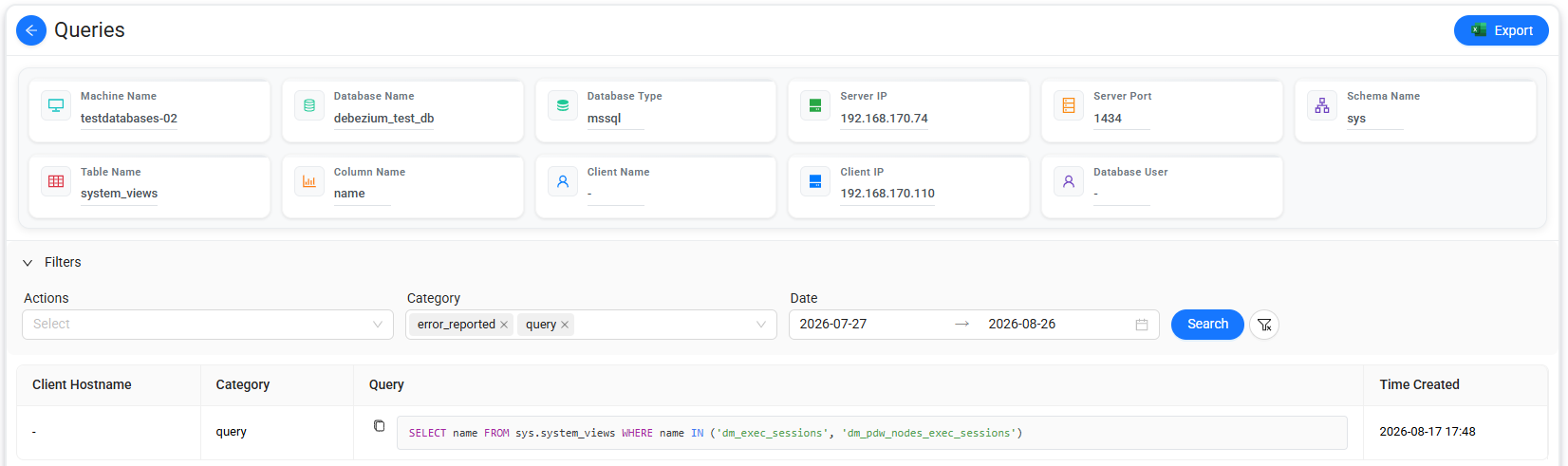
Traffic Sources
The Traffic Sources page displays all available traffic sources in a list.
You can search for and filter traffic sources by entering the required filter criteria.
To filter the list:
- Enter the required filter criteria.
- Select Search.
To export the filtered list to an Excel file, select Export.
The following action is available for each traffic source:
- Traffic Source Dashboard

Opens the Traffic Source Dashboard page, which provides detailed analytics for the selected traffic source.
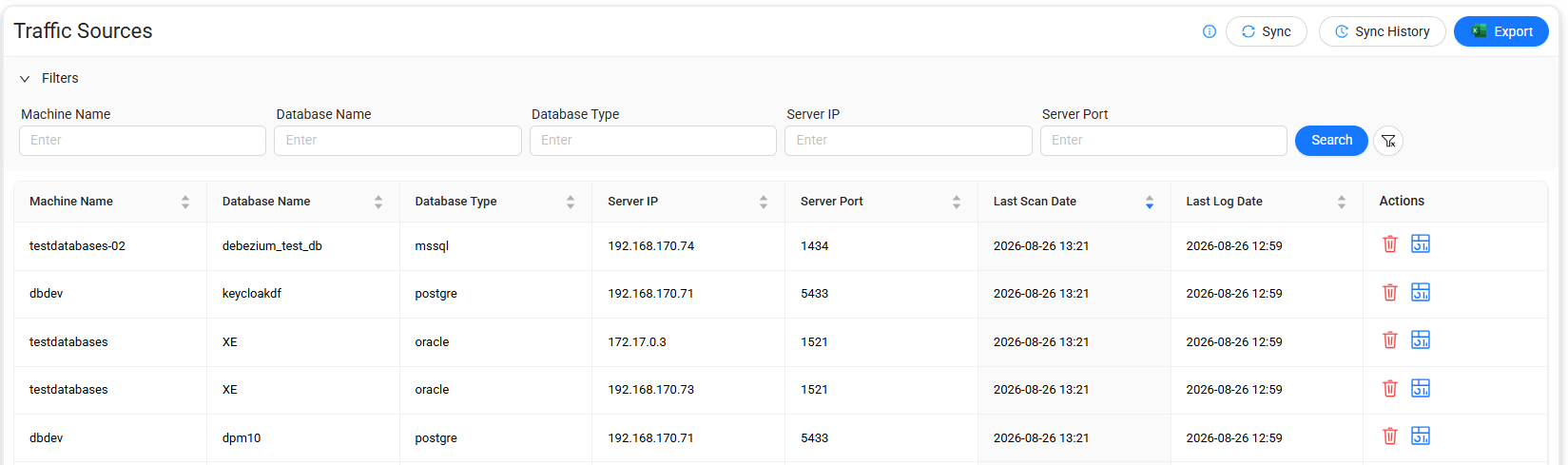
Traffic Source Dashboard
The Traffic Source Dashboard provides detailed information and analytics for the selected traffic source.
The dashboard includes the following charts:
- Periodic Usage
- Total Query of Consumers
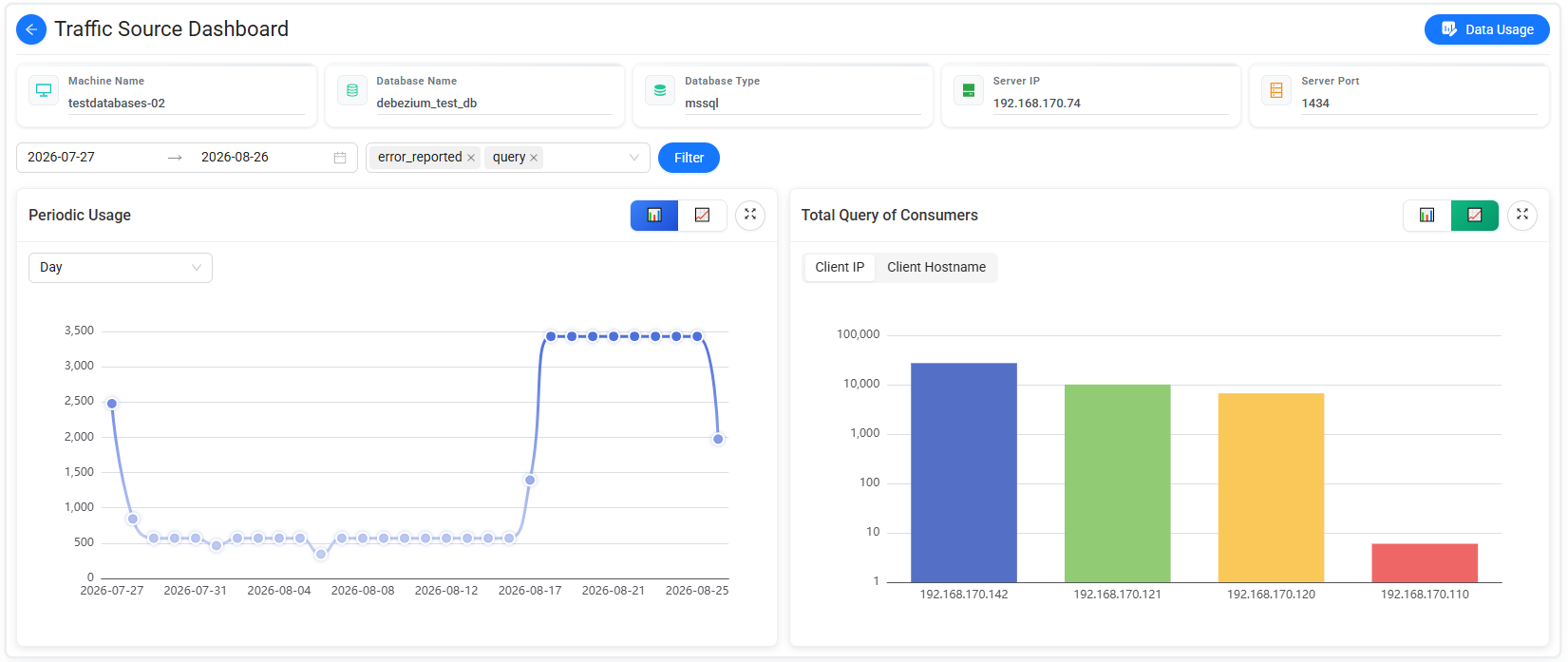
Periodic Usage
The Periodic Usage line chart shows total traffic source usage over time.
You can:
- Change the date range.
- Switch between Linear and Logarithmic scales.
Total Query of Consumers
The Total Query of Consumers bar chart shows the total number of queries performed by consumers.
You can group the query counts by:
- Client IP
- Client Hostname
Use the toggle to switch between Client IP and Client Hostname.
The chart displays the query count for each consumer directly on the corresponding bar. You can also switch between Linear and Logarithmic scales.
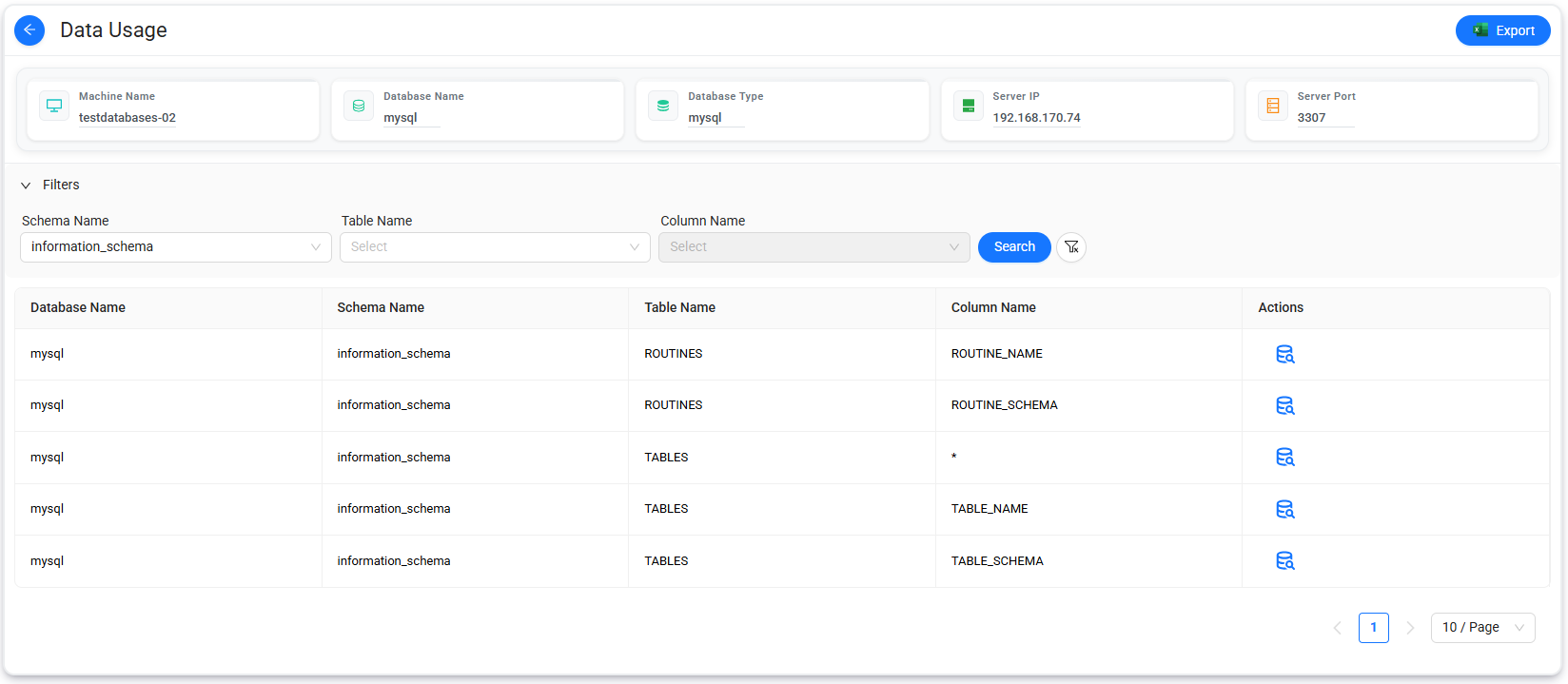
Data Usage
Select Data Usage on the Traffic Source Dashboard to view data usage information for the selected traffic source.
The Data Usage page lists the following database information for the source environment:
- Database Name
- Schema Name
- Table Name
- Column Name
You can filter the values in the list to narrow the displayed results.
To export the filtered results to an Excel file, select Export.
Retrieve consumer activity
On the Data Usage page, select  to open the Select Dates and Action window.
Use this window to define the time period and query actions to include in the results.
The following predefined date ranges are available:
- Three Days
- One Week
- 1 Month
- Custom Date
You can also select one or more Actions to filter the results by query type.
Note
If you do not select an action, Data Touch retrieves all available action types for the selected date range.
Based on the selected Date range and Actions, Data Touch displays detailed information about the queries performed by consumers during the specified period.
To export the displayed results to an Excel file, select Export.
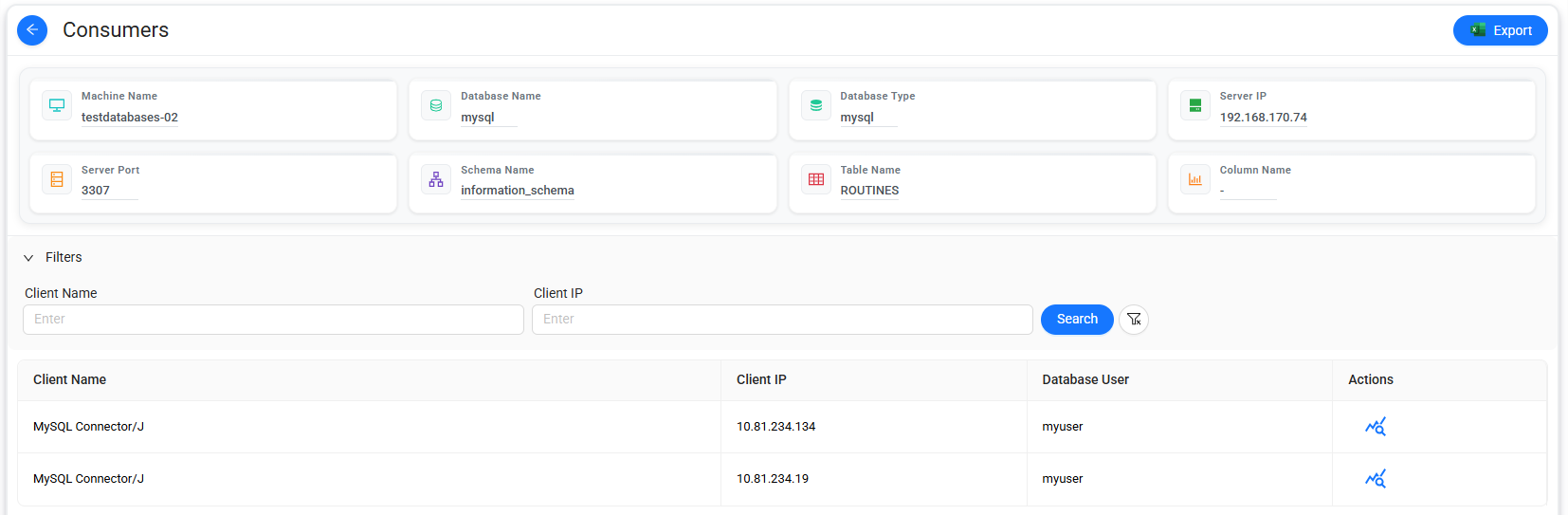
View query details
Select  for a consumer to view all queries associated with that consumer.
The query details are displayed as a list.
To export the displayed query details to an Excel file, select Export.
To copy a query, select  next to the relevant query.