Ledger
The Ledger menu provides tools for configuring, managing, and monitoring database change tracking.
The menu contains the following submenus:
- Management
- Alerts
The Management page displays configured ledgers and provides access to their configuration, tracked tables, dashboards, and change history.
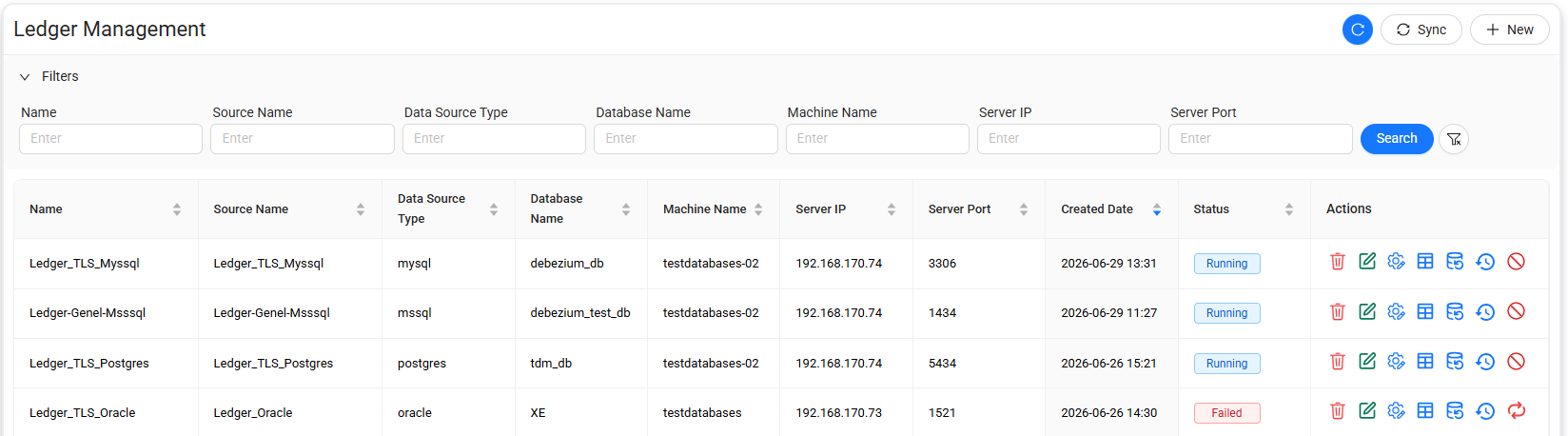
The Ledger Management page displays configured ledgers and their current status.
The list includes the following information:
| Column | Description |
|---|---|
| Name | Name of the ledger definition. |
| Source Name | Name of the data source associated with the ledger. |
| Data Source Type | Database type of the source, such as MySQL, Microsoft SQL Server, PostgreSQL, or Oracle. |
| Database Name | Name of the database monitored by the ledger. |
| Machine Name | Name of the machine that hosts the database. |
| Server IP | IP address of the database server. |
| Server Port | Port used by the database server. |
| Created Date | Date and time when the ledger definition was created. |
| Status | Current operating status of the ledger. |
| Actions | Actions available for managing and monitoring the ledger. |
The Status column indicates the current state of each ledger. For example:
- Running — The ledger is active.
- Failed — The ledger encountered an error and might require recovery.
Filter Ledgers
Expand Filters to narrow the ledger list.
The following filters are available:
- Name
- Source Name
- Data Source Type
- Database Name
- Machine Name
- Server IP
- Server Port
Refresh and synchronize ledgers
Select the Refresh button in the upper-right corner to update the information displayed on the page.
Select Sync to synchronize the ledger information.
Create a Ledger
Select + New on the Ledger Management page to open the Ledger Definition page.
Use this page to define the source, select the tables to track, specify optional connection parameters, and configure the retention period.
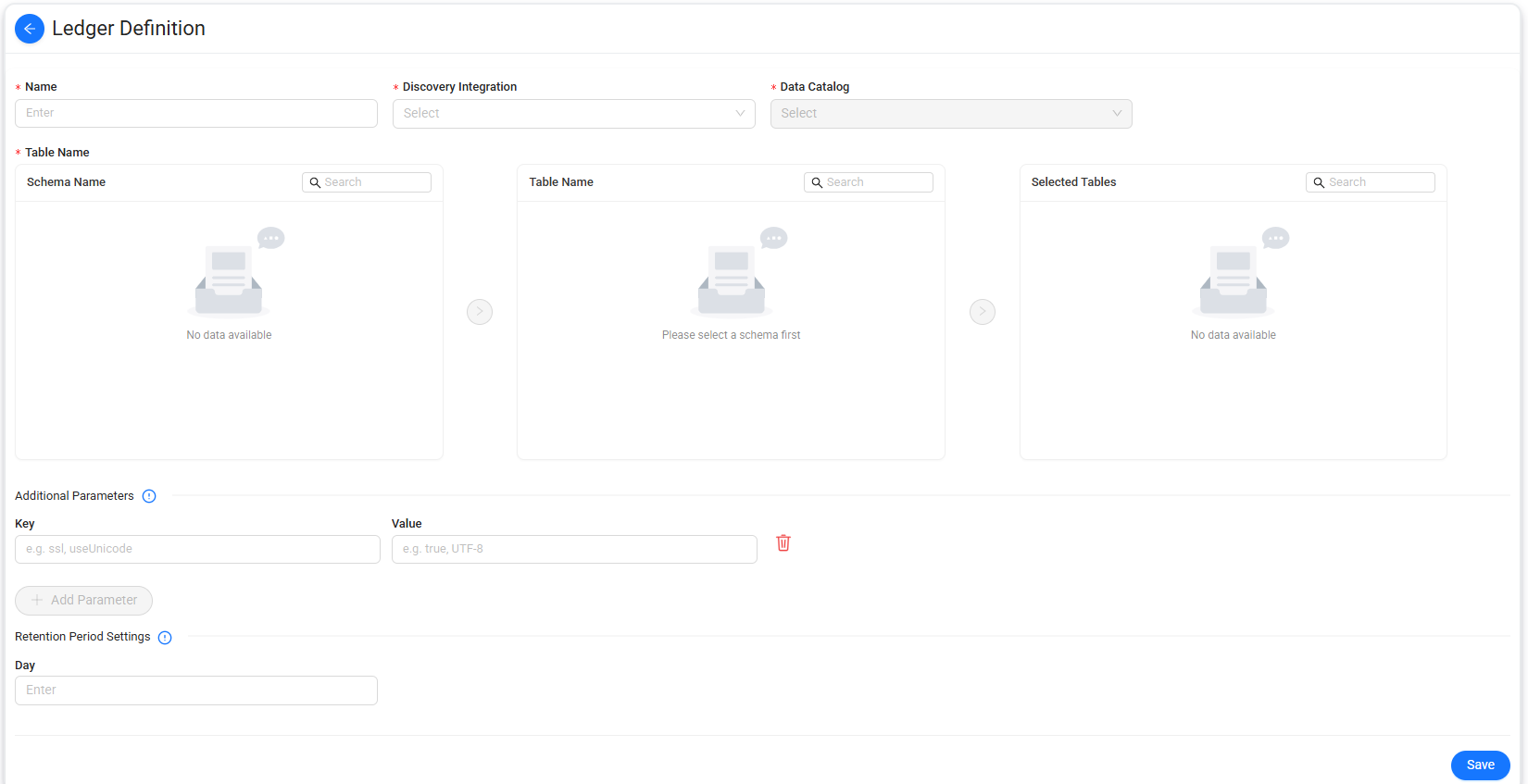
Ledger definition fields
The following fields are available:
| Field | Description |
|---|---|
| Name | Specifies the name of the ledger definition. |
| Discovery Integration | Specifies the Discovery integration that contains the data source to monitor. |
| Data Catalog | Specifies the data catalog associated with the ledger. |
| Table Name | Specifies one or more tables to include in change tracking. |
To select tables:
- Select a Discovery Integration.
- Select a Data Catalog.
- Select a schema from Schema Name.
- Select one or more tables from Table Name.
- Move the required tables to Selected Tables.
Use the search field in each panel to find schemas or tables when the list contains multiple entries.
The Selected Tables panel shows the tables that will be monitored by the ledger.
To add an additional parameter:
- Enter the parameter name in Key.
- Enter the corresponding setting in Value.
- Select Add Parameter to add another key-value pair, if required.
Use the delete button next to a parameter to remove it.
Note
Additional parameters depend on the data source and its connection requirements. Configure only the parameters required for your environment.
Use Retention Period Settings to specify the retention period for ledger data. Enter the required number of days in Day.
Save the Ledger
After configuring the ledger:
- Verify the selected integration, catalog, and tracked tables.
- Review any additional parameters.
- Specify the retention period.
- Select Save.
Data Touch creates the ledger definition and adds it to the Ledger Management list.
Ledger actions
The Actions column provides management and monitoring operations for each ledger.
The available actions are:
- Delete
- Edit
- Ledger Configuration
- Tracked Tables
- Ledger Dashboard
- Ledger Change History
- Pause, Run, or Recover
The execution action available for a ledger depends on its current status.
Delete a Ledger
Select Delete to remove the selected ledger definition.
Warning
Verify that the ledger is no longer required before deleting it.
Edit a Ledger
Select Edit to modify an existing ledger definition.
View Ledger Configuration
Select Ledger Configuration to view the configuration associated with the selected ledger.
The configuration page displays the settings used by the ledger to monitor the corresponding data source.
Tracked Tables
Select Tracked Tables to view the tables monitored by the selected ledger.
Use this page to verify which database tables are included in change tracking.
Ledger Dashboard
Select Ledger Dashboard to open the dashboard for the selected ledger.
The dashboard provides a graphical overview of changes detected by the ledger.
The following metrics are available:
- Total Changes: Shows the total number of database changes detected by the ledger.
- INSERT: Shows the number of new records detected in tracked tables.
- UPDATE: Shows the number of updates detected for existing records.
- DELETE: Shows the number of deleted records detected in tracked tables.
Ledger Change History
Select Ledger Change History to view changes captured by the selected ledger.
The change history provides information about database operations detected for tracked tables and can be used to review historical change activity.
You can export Ledger Change History data in XML format.
Control Ledger execution
The execution action displayed for a ledger depends on its current status.
-
Pause: Select Pause to temporarily stop a running ledger.
-
Run: Select Run to start or resume a ledger that is not currently running.
-
Recover: Select Recover when a ledger is in a failed state.
The recovery operation attempts to restore the ledger so that change tracking can continue.
Note
Available execution actions depend on the current ledger status. For example, a running ledger provides the Pause action, while a failed ledger provides the Recover action.
Ledger Alerts
The Alerts page under the Ledger menu is used to configure and manage alerts for changes detected by configured ledgers.
Ledger alerts can monitor the following database operations:
- INSERT
- UPDATE
- DELETE
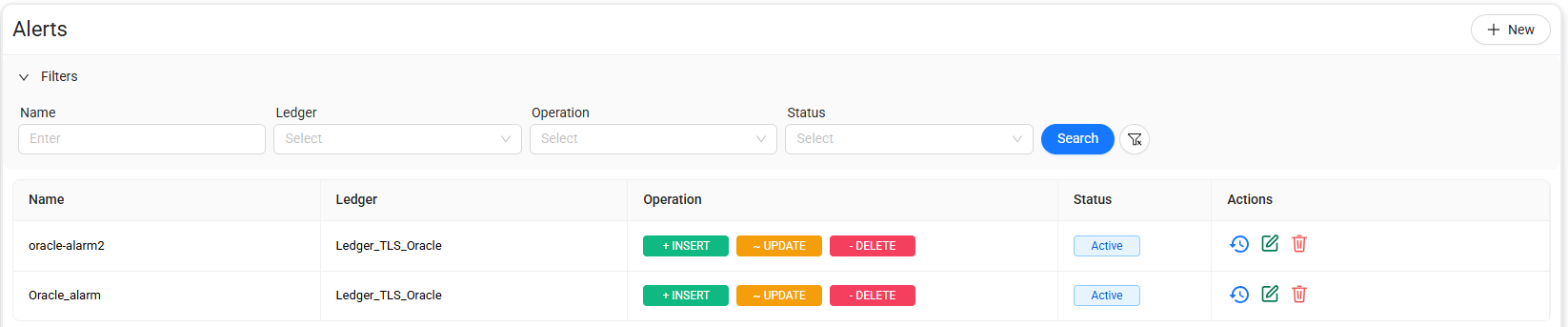
The Alerts page displays the configured ledger alerts and their current status.
The list includes the following information:
| Column | Description |
|---|---|
| Name | Name of the alert definition. |
| Ledger | Ledger monitored by the alert. |
| Operation | Database operations monitored by the alert. |
| Status | Current status of the alert. |
| Actions | Actions available for managing the alert. |
Operation
The Operation column shows which database change types are monitored by the alert.
The following operations can be displayed:
- INSERT — Monitors newly inserted records.
- UPDATE — Monitors changes made to existing records.
- DELETE — Monitors deleted records.
An alert can monitor one or more operation types.
Status
The Status column shows the current state of the alert.
For example, Active indicates that the alert is enabled.
Filter alerts
Expand Filters to narrow the alert list.
The following filters are available:
| Filter | Description |
|---|---|
| Name | Filters alerts by alert name. |
| Ledger | Filters alerts by the associated ledger. |
| Operation | Filters alerts by database operation type. |
| Status | Filters alerts by status. |
Create an alert
Select + New on the Alerts page to open the New Alarm Rule page.
Use this page to specify the ledger and database operations to monitor, define optional record-level conditions, select the changed column, and configure alert recipients.
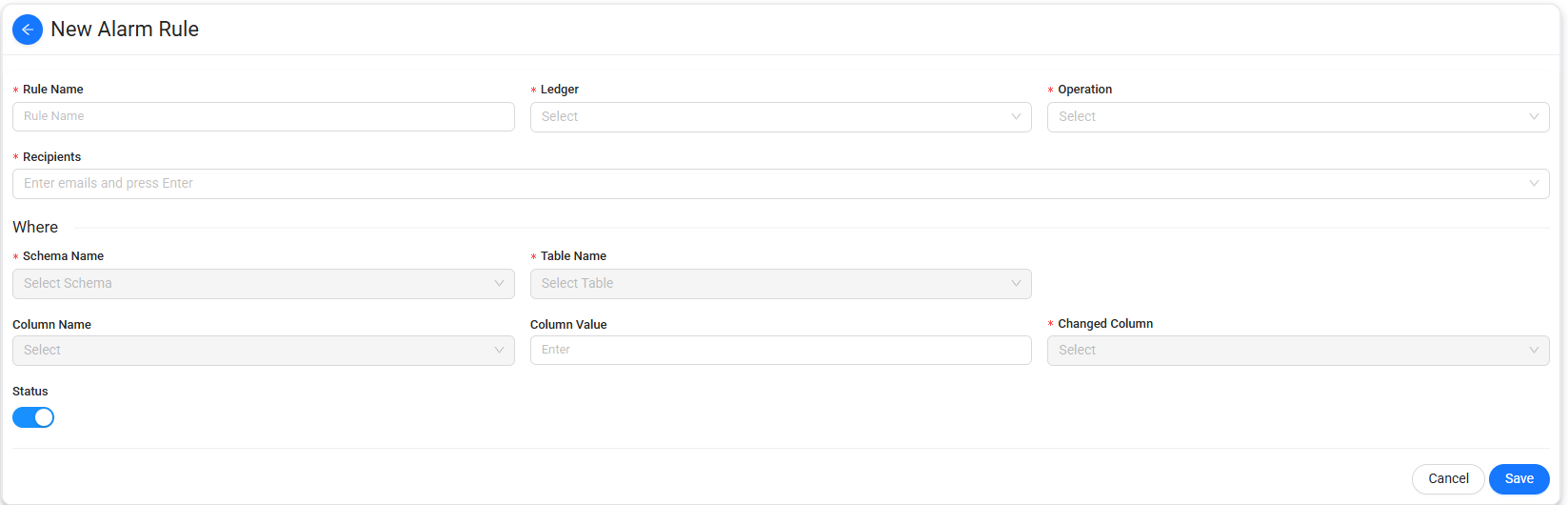
Alert rule fields
The following fields are available:
| Field | Description |
|---|---|
| Rule Name | Specifies the name of the alert rule. |
| Ledger | Specifies the ledger that the rule monitors. |
| Operation | Specifies the database operation or operations that trigger evaluation of the rule. |
| Recipients | Specifies the email addresses that receive notifications for the alert rule. |
| Schema Name | Specifies the schema that contains the table to monitor. |
| Table Name | Specifies the table to monitor. |
| Column Name | Specifies a column to use as a condition for the alert rule. |
| Column Value | Specifies the value to match for the selected Column Name. |
| Changed Column | Specifies the column whose change is monitored by the rule. |
| Status | Enables or disables the alert rule. |
To create an alert rule:
- Enter a Rule Name.
- Select a Ledger.
- Select the required Operation.
- Add one or more Recipients.
- Select a Schema Name.
- Select a Table Name.
- If required, select a Column Name and enter a Column Value to define an additional condition.
- Select the Changed Column to monitor.
- Set the required Status.
- Select Save.
Data Touch creates the rule and adds it to the Alerts list.
Alert actions
The Actions column provides the following actions for each alert: History, Edit, and Delete
-
View alert history: Select History to open the history associated with the selected alert. Use the alert history to review alert events recorded for the alert definition.
-
Edit an alert: Select Edit to modify the configuration of an existing alert. Use this option to update the alert definition without creating a new alert.
-
Delete an alert: Select Delete to remove the selected alert definition.
Warning
Verify that the alert is no longer required before deleting it.