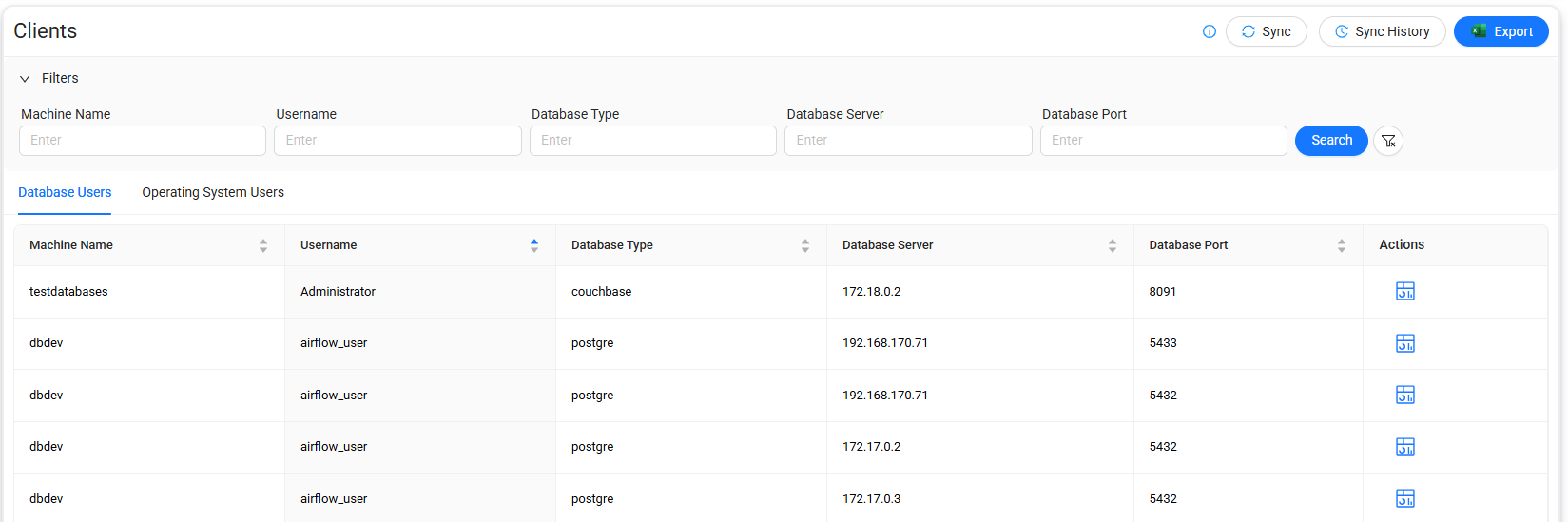
Clients
The Clients page displays database users and operating system users in separate tabs.
Select Clients from the menu, and then use the relevant tab to view:
- Database users
- Operating System users
You can search for and filter clients by using one or more of the following parameters:
- Machine Name
- Username
- Database Type
- Database Server
- Database Port
To export the filtered results to an Excel file, select Export.
To synchronize client information, select Sync.
To view synchronization details, select Sync History. The synchronization history includes:
- Sync Execution Date
- Duration
- Synced Data Count
- Status
The following action is available for each client:
- Client Dashboard

Opens the Client Dashboard page, which provides detailed analytics for the selected client.

Client Dashboard
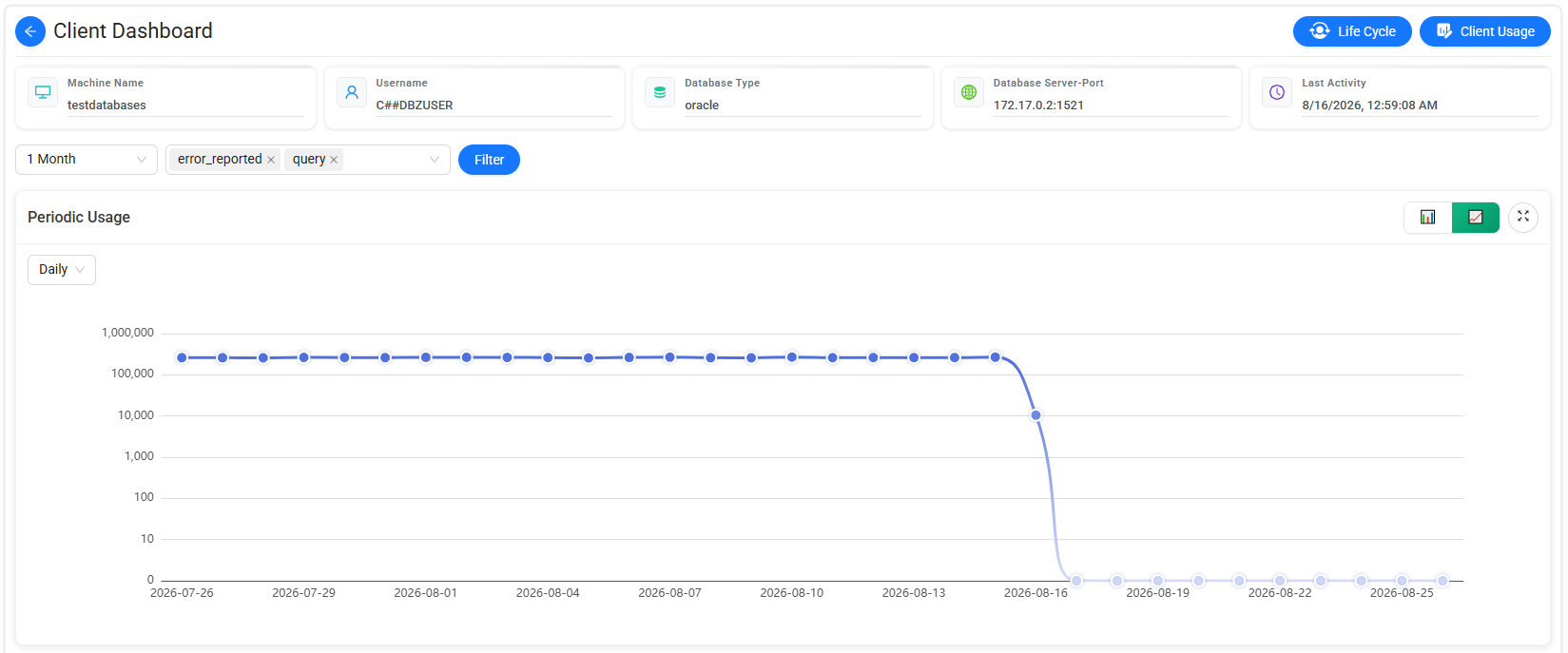
The Client Dashboard provides detailed information and analytics for the selected client.
The dashboard analyzes scanned tables and columns based on client activity and query data. Use the date range filter to limit the displayed results to a specific period.
The dashboard includes the following charts:
- Periodic Usage
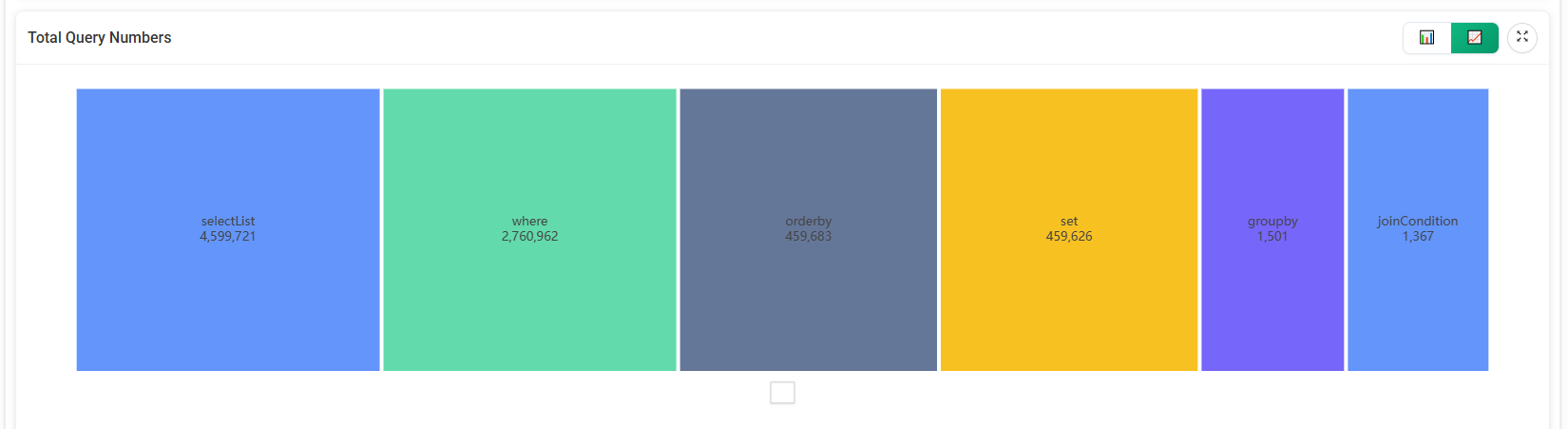
- Total Query Numbers
Periodic Usage
The Periodic Usage chart shows client activity during the selected date range.
You can:
- Change the date range.
- Switch between Linear and Logarithmic scales.
Total Query Numbers
The Total Query Numbers chart shows the total number of queries by query type.
You can switch between Linear and Logarithmic scales to change how the values are displayed.
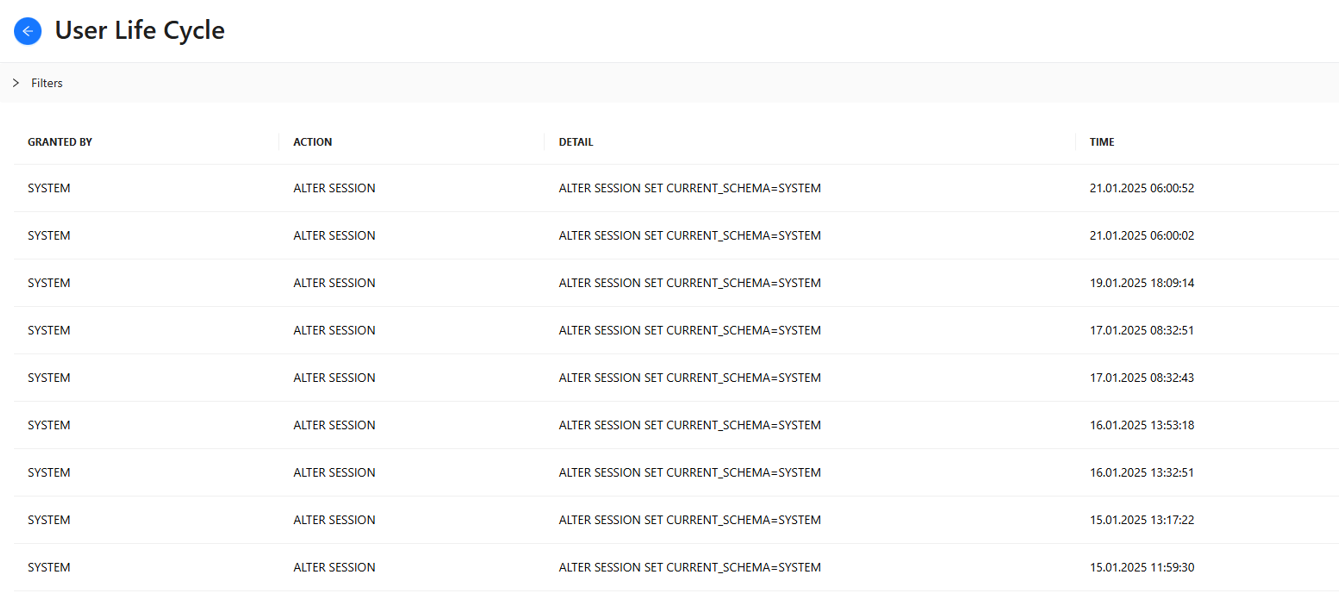
User Life Cycle
Select Life Cycle on the Client Dashboard to view the user life cycle for the selected client.
The User Life Cycle page includes the following information:
- Granted By
- Action
- Detail
- Time
Client Usage
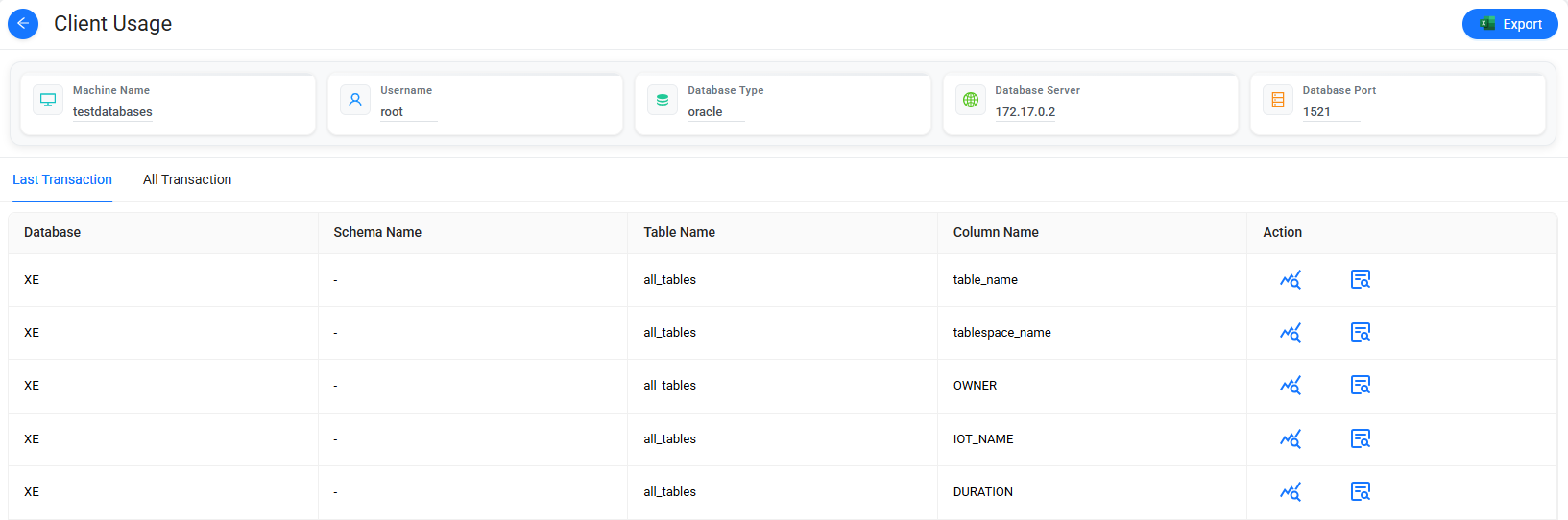
Select CLIENT USAGE on the Client Dashboard to view usage information for the selected client.
The Client Usage page includes the following details:
- Database
- Schema Name
- Table Name
- Column
To view all recorded transactions, select the All Transactions tab.
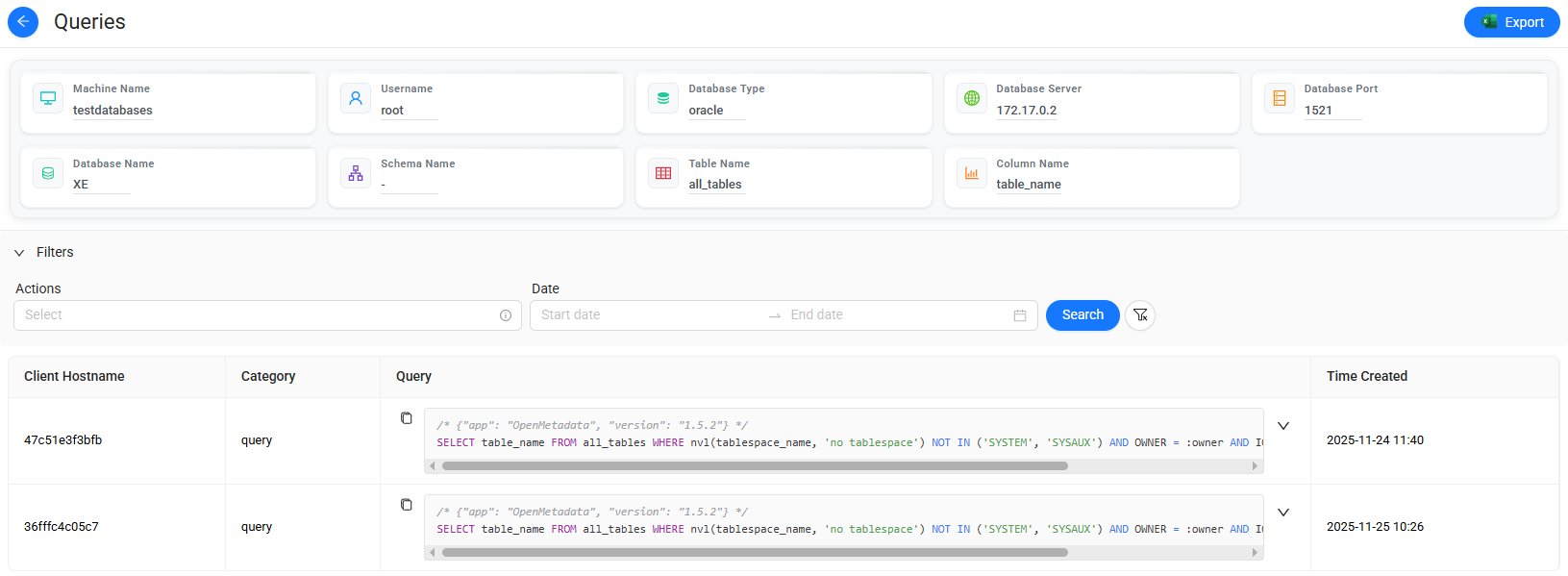
Column queries
Select  to view all query details associated with the selected column.
The query details are displayed as a list.
To export the displayed results to an Excel file, select Export.
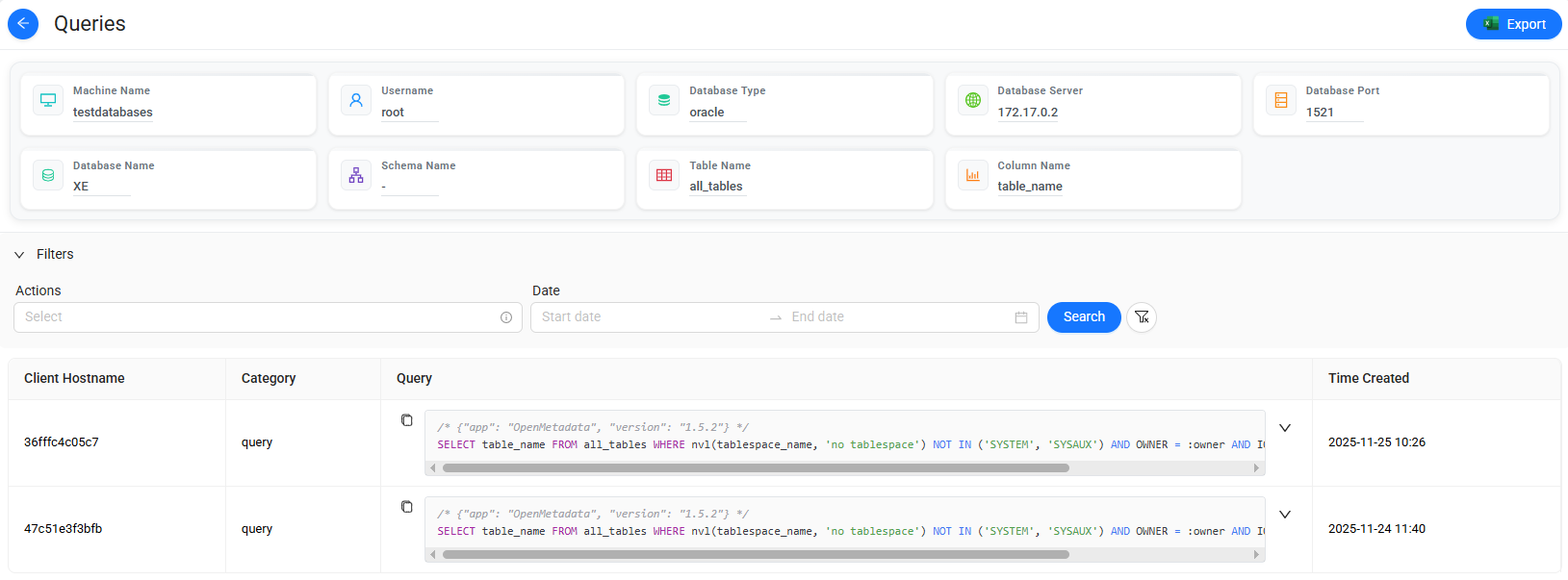
Table queries
Select  to view all query details associated with the selected table.
The query details are displayed as a list.
To export the displayed results to an Excel file, select Export.