Spectrum Report
The Spectrum Report menu is used to create, manage, run, and review Spectrum reports.
The page provides a detailed list of existing reports and allows you to:
- Search for and filter reports.
- Create a new report.
- Run selected reports.
- Run all reports.
- Edit or delete existing reports.
- Review report history.
- View report details and result information.
- Review execution logs.
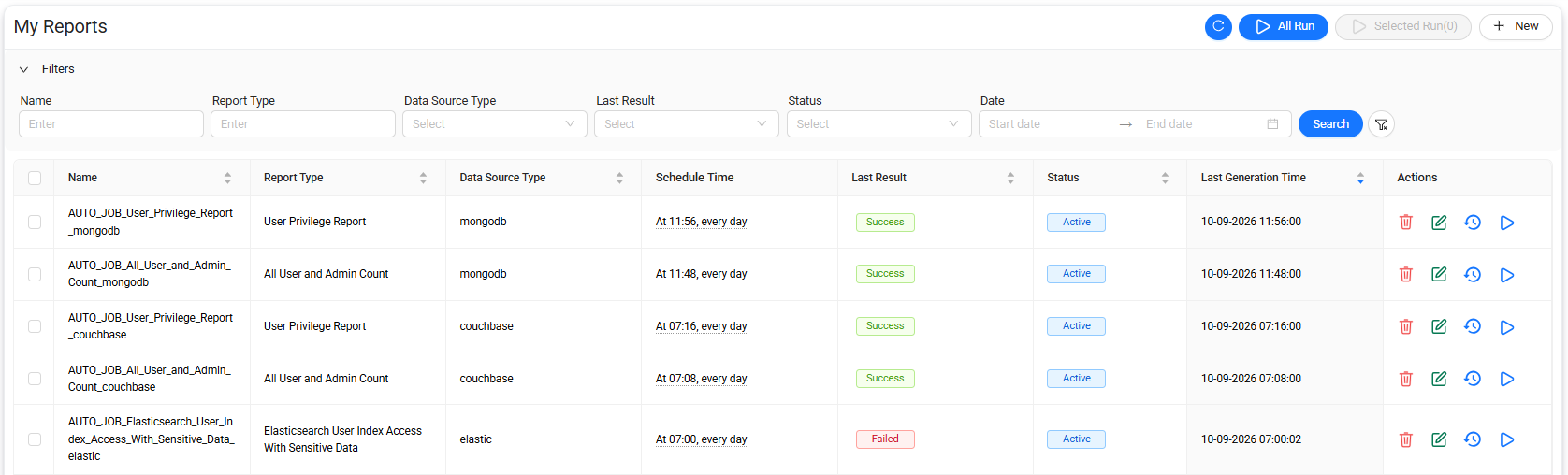
Search and filter reports
Use the available filters to narrow the report list.
Enter or select the required filter criteria, and then select Search to display matching reports.
Run reports
Spectrum reports can be run manually from the report list.
Two execution options are available:
- Selected Run — Runs only the reports that you select from the list.
- Run All — Runs all reports in the list.
Run selected reports
Use Selected Run when you want to run specific reports without running all configured reports.
To run selected reports:
- Select the reports that you want to run.
- Select Selected Run.
Data Touch starts the selected reports using their current configurations.
Run all reports
Select Run All to start all configured reports.
Note
Use Selected Run when only specific reports need to be executed. Use Run All when all configured reports need to be executed.
Report actions
The Actions column provides operations for managing and reviewing individual reports.
Available actions can include:
- Delete
- Edit
- Report History
- Report Detail
- Result Information
- Log Details
- Report Run
Delete a report
Select Delete to remove the selected report.
Warning
Verify that the report is no longer required before deleting it.
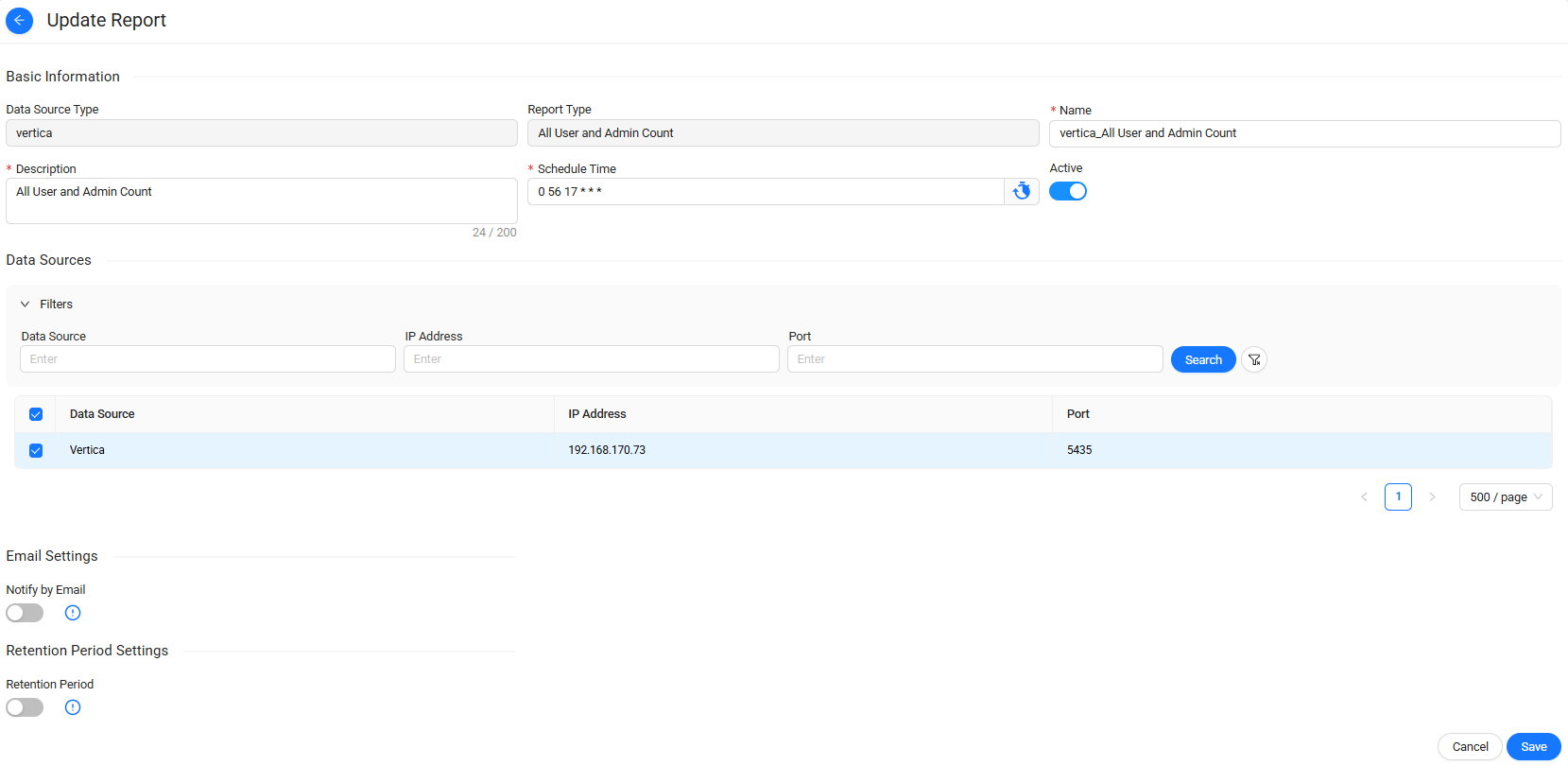
Edit a report
The Edit action is available for reports with a Fail or Success status.
Select Edit to modify the configuration of the selected Spectrum report.
After making the required changes, select Save to apply them.
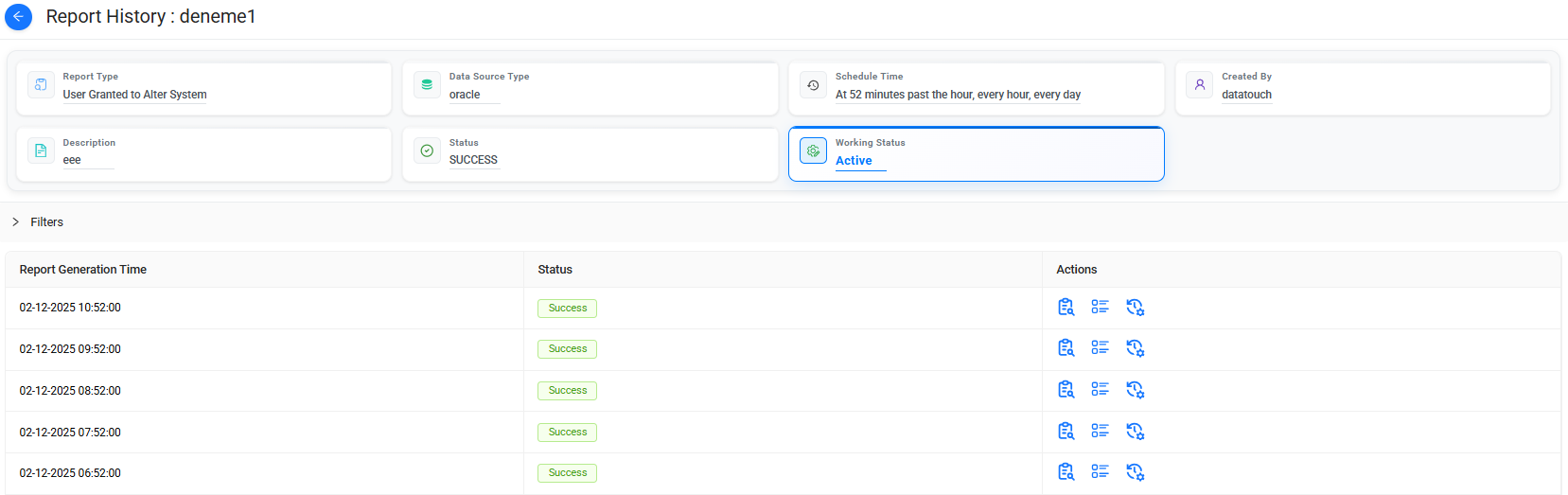
View Report History
Select Report History  in the Actions column to view the execution history of the selected report.
The history page lists the report generation times recorded for that report.
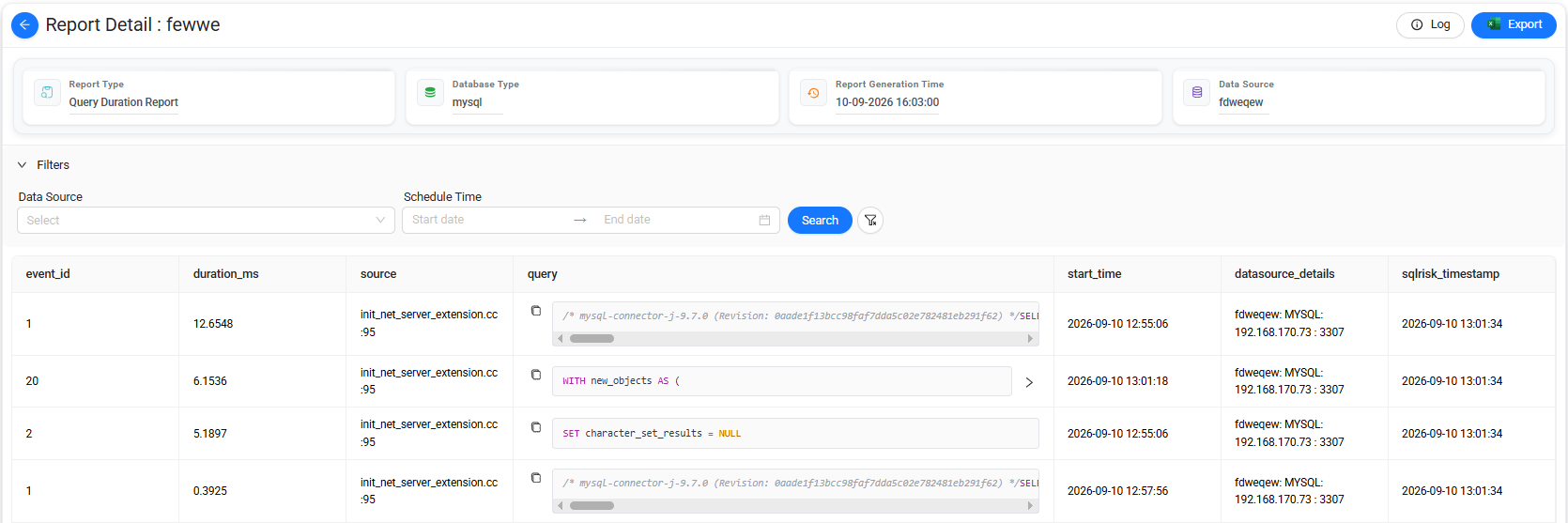
View Report Detail
Select Report Detail  in the Actions column to view detailed information associated with the selected report.
The page includes information such as:
- Name
- Data Source
- IP Address
- Port
- Grantee
- Privilege
You can filter the displayed information as required.
Select Export to export the displayed report details to an Excel file.
View Result Information
Select Result Information  in the Actions column to view execution result information for the selected report.
The page includes information such as:
- Name
- IP Address
- Port
- Log

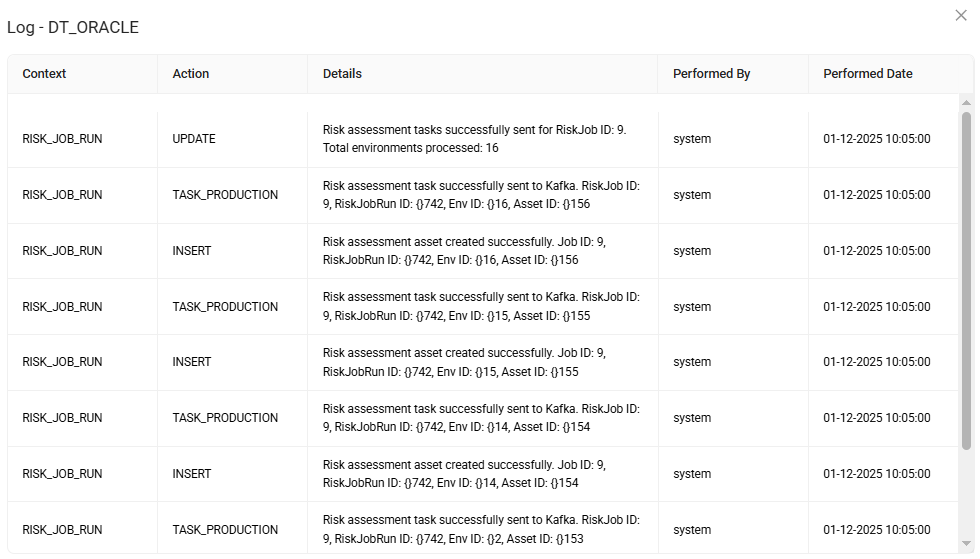
View Log Details
Select Log Details  in the Actions column to open the detailed execution logs associated with the selected report.
Use the log details to review information related to report execution.
Export a report
On the Report Detail page, select Export to download the displayed report information as an Excel file.

Run a report
Select Report Run to manually run an individual report.
Data Touch starts report generation immediately using the report's current configuration.
Create a report
Select + New on the Spectrum Report page to create a new report.
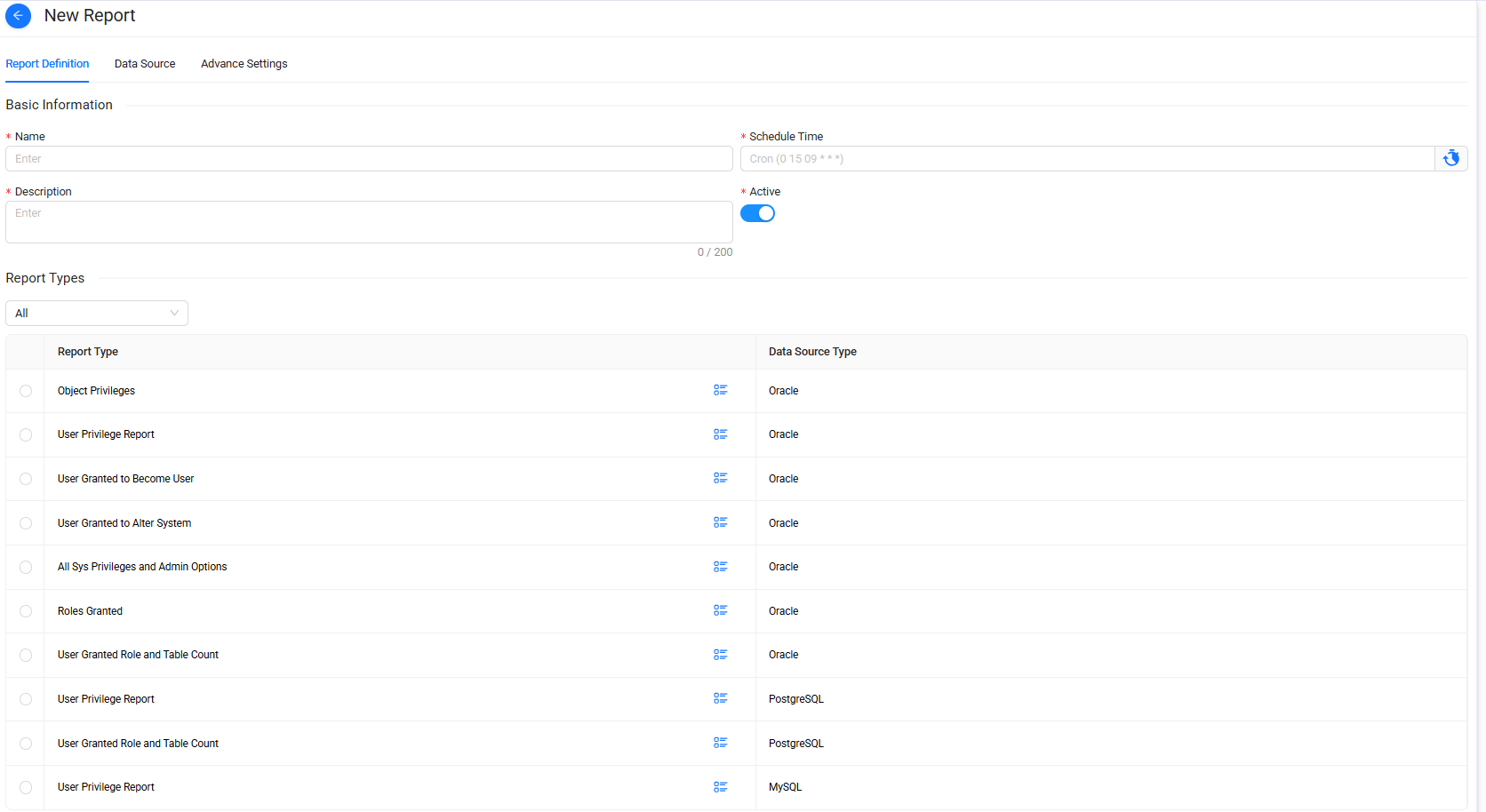
Report creation consists of defining the basic report settings, selecting the report type and data source, and configuring notification and retention settings.
Define report information
On the first step of the report definition:
- Enter a Report Name.
- Enter a Description.
- Configure the Schedule Time.
- Select the required Active or Passive status.
- Select a Report Type.
- Select Next.
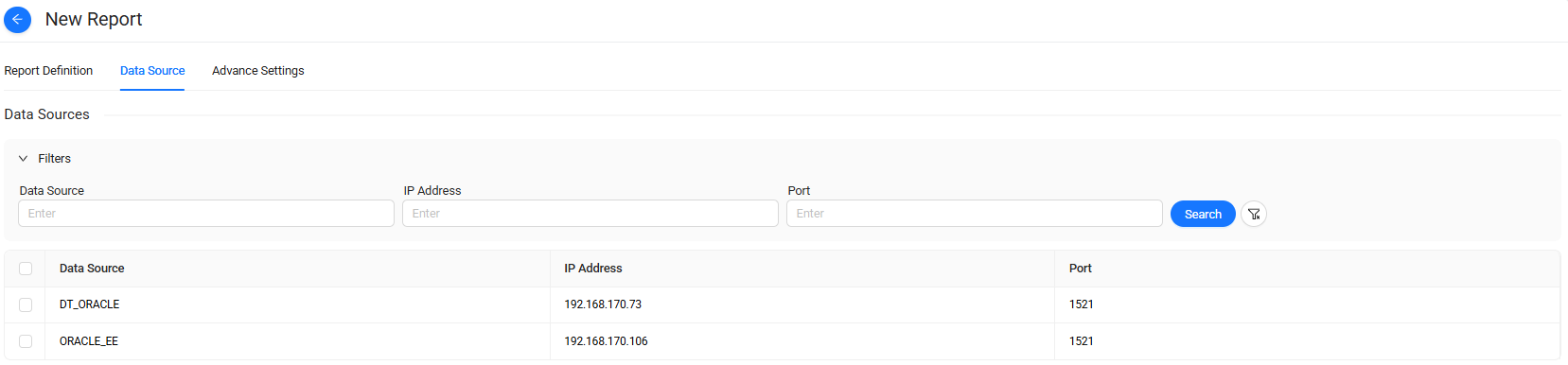
Select a data source
On the Data Source tab, select the data source to include in the report.
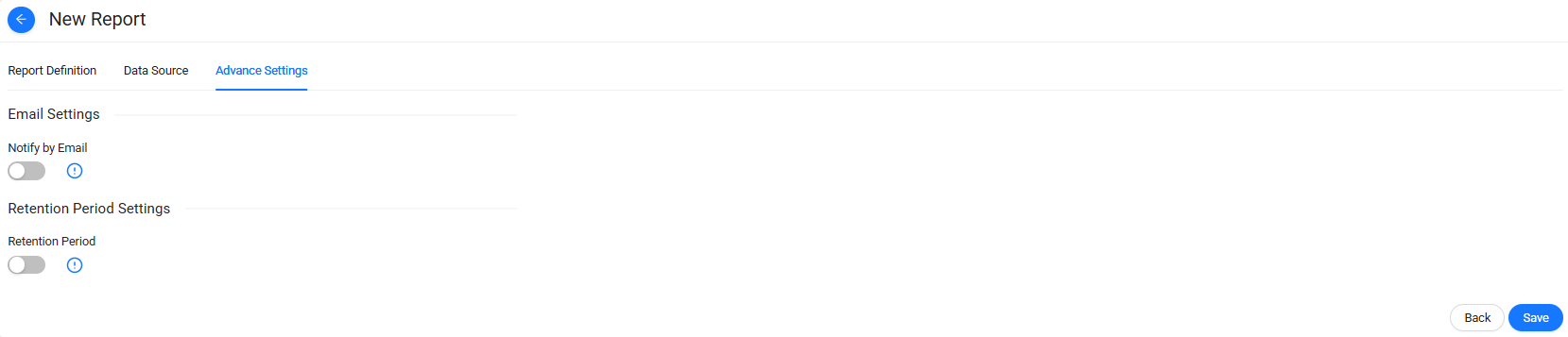
Configure report settings
Configure the following report settings:
- Notify by Email
- Retention Period
Use Notify by Email to configure email notification for the report as required.
Use Retention Period to define how long report data is retained.
After completing the configuration, select Save.
Data Touch creates the report and adds it to the Spectrum Report list.